How AI Decision-Making is Improving Enterprise Outcomes
Blog
Share 
AWS Systems Manager: Proven Best Use Cases and a Real-World Success Story
 19 October 2023
 Team Beinex
AWS Systems Manager seamlessly operates with both Windows and Linux OS and integrates with CloudWatch metrics, CloudWatch Dashboard, and AWS Config. Moreover, it enables the creation of resource groups spanning various AWS services, allowing for aggregated operational data viewing and facilitating monitoring, troubleshooting, and resource group-specific actions.
Common use cases and best practices for AWS Systems Manager capabilities are listed below:
Automation
Inventory
Maintenance Windows
Parameter Store
Patch Manager
Run Command
Session Manager
State Manager
Managed Nodes
Case Study: A Global Cloud Solutions and Services Company Enhances Scalability and Efficiency with AWS Systems Manager
Client: A Global Cloud Solutions and Services Company
A technology services company that specialises in helping organisations across 120 countries adopt modern technologies and manage them efficiently. They focus on creating solutions for hybrid and multi-cloud environments.
Requirement: Finding Scalability on AWS Systems Manager
The client faced a significant challenge in managing multi-cloud environments at scale reliably and cost-effectively. Manually handling activities across hundreds of thousands of different compute instances was resource-intensive and delayed issue resolution. They needed a solution that could run both on-premises and on the cloud and wanted a single tool for managing their suite of solutions.>
Challenges
Process: Supporting Automation, Staff Productivity, and Transparency on AWS
The client began using AWS Systems Manager in 2015 for various products and extended its use to other cloud environments in 2019. Since 2019, the client has utilised AWS Systems Manager to power patching activities across all major cloud providers they support. They perform mass patching at scale, covering over 62,000 VMs across all their managed services. VM Management automates traditionally manual tasks like patching, agent distribution, server diagnostics, and issue remediation. It significantly reduces labour, costs, and errors associated with manual tasks, enhancing security and efficiency.
SmartTickets, a component in VM Management, handled thousands of incidents and automated responses using AWS Systems Manager, saving time and reducing costs for the company. They also used Amazon CloudWatch for monitoring and observability and automated runbooks for real-time monitoring and alerts.
AWS Systems Manager provides a single-pane view of environments, improving customer visibility and decision-making.
Result: Taking Automation to the Next Level on AWS
The client plans to develop custom runbooks with customers and further automate responses and resolutions using AWS Systems Manager. They have successfully solved industry challenges by saving time, cutting costs, and reducing complexity for both their customers and themselves.
Key Takeaway
The client leveraged AWS Systems Manager to streamline and automate their operations, resulting in improved efficiency, cost reduction, and enhanced customer satisfaction. With automation, they can swiftly respond to and resolve issues, meeting customer expectations effectively.
How Beinex Can Help You
Beinex is an AWS consulting partner, and we empower customers to host their BI solutions and much more on the cloud. Our cloud migration experts bring in best-in-class stability and reliability by understanding your business strategy and working closely with you to deploy AWS infrastructure as a service.
AWS Systems Manager is a comprehensive AWS management service designed to streamline the administration of your AWS Cloud-based applications and infrastructure. Systems Manager can be used with hybrid and multi-cloud environments. It offers the ability to manage EC2 instances, on-premises instances, and VMs at scale, facilitating automated software inventory collection, OS patch application, system image creation, and Windows and Linux OS configuration.
By using AWS Systems Manager, you gain invaluable operational insights and infrastructure state data, simplifying the management of your resources. This tool empowers you to effortlessly detect and address underlying infrastructure issues, all while offering free patching capabilities for enhanced compliance.
Related Articles

Snowflake Summit 2025 at San Francisco Highlights: Latest AI-powered Innovations that Can Take You a Long Way
What's New in Snowflake Summit 2025
The main innovations and improvements revealed at the Snowflake summit 2025 are highlighted in this blog, but there is more to come.
1. Get Started with Agentic AI with No Code
Agentic AI refers to AI systems that proactively assist users by understanding context, initiating actions, and automating tasks. Snowflake's agentic AI experiences enable both technical and non-technical users to utilise and interact with AI and data using natural language, without writing a single line of code. The key features highlighted are:
• Data Science Agent (coming soon in private preview): Your ML copilot that can automate feature engineering, training, and more using plain English.
• Cortex AISQL (public preview): Cortex AISQL enables users to utilize SQL to analyze documents, images, and other unstructured data types. Now includes schema-aware table extraction from complex PDFs.
• Cortex AI Agents (public preview): You can use natural language to ask questions, analyze structured and unstructured data, and take action, all within the Snowflake platform.
Bonus: All of this operates within Snowflake's secure perimeter, maintaining governance and privacy by default.
2. Unified Data Engineering and Interoperability
Snowflake is solving rigid data pipelines and slow ingestion issues with new tools built for flexibility and speed. Let's have a look:
• Snowflake OpenFlow (powered by Apache NiFi): A managed, extensible, multimodal low-code ingestion platform. It includes hundreds of connectors to eliminate data silos. To facilitate smooth ETL processing for AI, OpenFlow transforms data movement within Snowflake.
• Native dbt Integration (coming soon): With Git and AI Copilot built-in, you can develop and run dbt models natively within Snowsight UI.
• Iceberg Table Enhancements: You can work effortlessly with external catalogs using the Iceberg REST API. It supports VARIANT data types and Merge-on-Read for semi-structured data.
• DevOps-Ready: Snowflake Workspaces now support custom Git URLs and Python 3.9. Terraform provider is now generally available.
3. Analytics with AI-Driven Acceleration
Analytics just got smarter, faster, and easier to scale with the following updates:
• Snowflake Semantic Views (public preview): It provides excellent support for BI teams, and you can create consistent, reusable business metrics and entities within Snowflake.
• Gen2 Warehouses: Generation 2 (Gen2) is a modernized version of Snowflake's standard warehouse, featuring enhanced hardware and improved performance capabilities. It provides a 2.1x performance boost for analytical queries with enhanced scans, DELETEs, and MERGEs.
• SnowConvert AI: A free, automatic tool for auto-converting legacy ETL/BI code to Snowflake. It reduces risk and saves migration costs.
4. Smarter Marketplace to Share, Sell & Collaborate Easily
Snowflake is making it easier to monetize AI apps and datasets using:
• Cortex Knowledge Extensions: While maintaining IP protection, embed real-time info from Stack Overflow, AP, Packt, and more into your apps.
• Semantic Model Sharing (private preview): Rely on natural language to explore datasets across internal teams or external partners.
• Agentic Snowflake Native Apps: You can easily build and sell no-code, AI-powered apps directly through the Snowflake Marketplace.
5. The Future of Platform: Adaptive, Governed & Secure
Snowflake isn't just innovating; it's redefining what a modern data platform should be in the following ways:
• Adaptive Compute (Adaptive Warehouses): You can automatically adjust resources based on workload, delivering speed without overspending.
• Horizon Catalog (private preview): It enables users to easily discover and govern external data sources, such as dashboards and relational databases.
• Copilot for Governance (coming soon): Users can utilize this feature to manage metadata, access policies, and security using natural language.
• Security Upgrades: To improve account protection, enhanced MFA, password policies, and a revamped Trust Center are being implemented.
• Snowflake Trail: You can debug pipelines and optimize your generative AI agents and apps using new observability features.
Summing Up
Snowflake Summit 2025 showcased the company's push toward an Agentic AI enterprise data platform. Snowflake's advanced features, including Cortex AISQL, OpenFlow, dbt integration, and native app frameworks, are democratizing AI and making it easier for users. Whether you're a data scientist, engineer, or business leader, Snowflake's latest innovations promise faster time-to-insight, reduced complexity, and deeper control over your data universe.

Prepping the data on Tableau: Five aspects that matter
Data preparation is purging imperfectly formed data, reorganising unclean data, and merging various data sets for analysis. Rows and columns in the data structure must be changed, and data types and values must be cleaned up. The amount of time it takes to find insights directly depends on how quickly and well you prepare your data. The entire process can be sped up by being aware of the extent of the data you're studying and observing the modifications you make to the data.
With the help of Tableau Prep Builder, data can be combined, shaped, and cleaned more quickly and easily for analysis within Tableau. You can swiftly obtain high-quality data using the linear and visual approach when preparing your data.
When ushering in data into a data prep tool, it is always better to know what you're working with and whether you're looking at the complete data set or just a subset. Before you begin cleaning, you might also need to undertake some data research. Five crucial steps are to be taken care of for prepping the data.
Let's have a look:



 One technique to get beyond this obstacle is visualising the data pane in Tableau Desktop as to how it should appear. Do you have columns with the same value in several places? Should each product be in a single field with the sales transactions stated below, or should each product have its column with the sales transactions listed underneath? The latter is more likely, and a pivot is necessary for this situation.
You will be joining the data if you need to combine two tables. By using a join, you can increase the number of fields in your data source that you can investigate. Although a join can be added at any point during the data preparation process, the sooner you use it, the sooner you will comprehend the data set and identify areas that require immediate attention.
 Like appending two data sets together, a union enables you to do so. For instance, you might have an Excel file where each sheet displays transactions from different years. You may maintain the same structure with extra rows by using a union rather than joining the tables.
After your data has been organised, processed, and filtered, it's time to interpret what it is trying to tell you. Tableau Prep connects with your entire business intelligence platform like many other data preparation products. To allow others to begin their analysis, publish the extract to Tableau Server or Tableau Cloud. Bring it into Tableau Desktop to start posing and investigating more in-depth queries. The hardest part of the data analysis process is now complete. It's time to share the breakthroughs that resulted from your hard work.
1. Adjust the data sample size
To speed up your data preparation process and improve performance, you should generally only connect to a small portion of a vast data set. You might occasionally prefer to view the entire data set, and Tableau Prep enables you to do so. If a sample doesn't help you complete your data preparation task, you can try the following:
- a. Boost the size of your data sample: Adjust the sample's row count by returning to the input stage. You can add more rows or include all the data but remember that doing so might make the performance slower. Another word of caution is that utilising a specified number of rows will only return the fastest method the underlying database can find to replace the given rows.
- b. Take random sampling: Tableau Prep automatically chooses the optimal number of rows to return based on the total number of fields in the collection and the data types of those columns. The database level random sampling occurs and returns the specified number of rows. The database returns a sample after inspecting each entry. Not all data sources provide this option, which could also affect performance.
- c. Add a step filter at the input stage: You may ensure that the information pulled into your data set is pertinent to your research by including a filter at the input stage. This improves performance while providing you with a more representative sample.
2.Evaluate the data
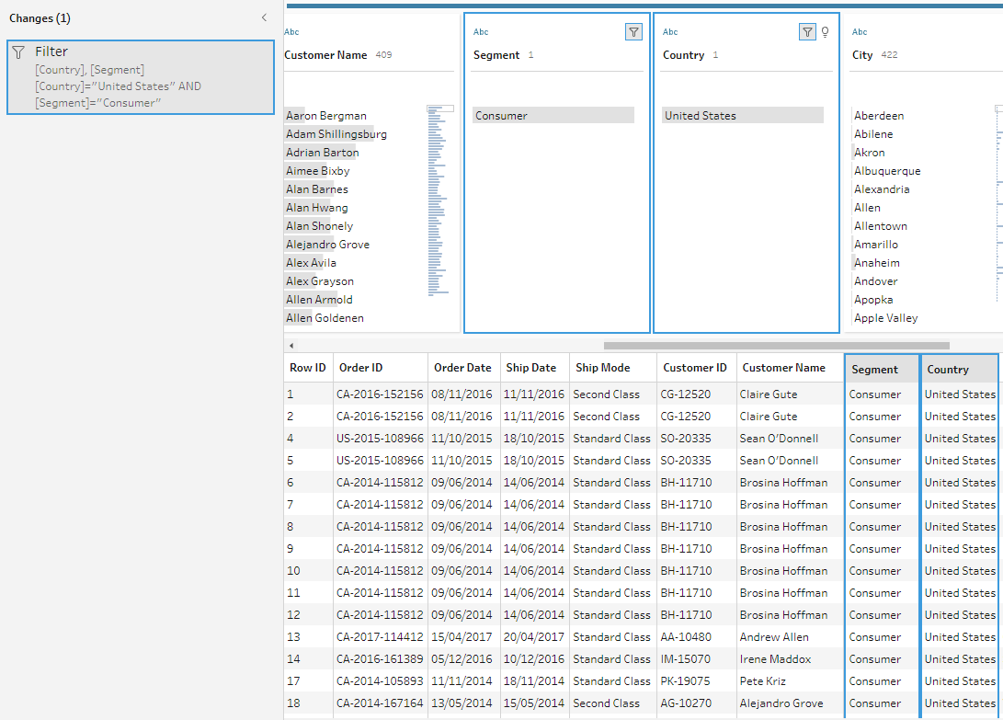
You'll probably want to start by counting the number of distinct values in each field. A simple check at the column header at the top reveals how many states are represented in the data set. You'll also want to understand how various values connect to identify data outliers or problems. You can utilise highlighting in Tableau Prep to find correlations between different fields. The data grid view is condensed to only display the records with the selected value in the chosen field when you click on a value in the profile pane. Tableau Prep highlights the corresponding values in blue, and the values span areas.
3.Filter the data
Limit the fields you import into Tableau Prep to those you'll need for your analysis to maximise the overall effectiveness of your data preparation process. By filtering your data, you can verify that you're performing the proper analysis while saving time. For instance, if you need to look at sales data from the previous two years, you may use the range or relative date filters to limit the date field to that period. You might want to eliminate any incorrect or irrelevant data. A value in the data pane can be excluded with a single click. You can do this at any time during your flow.
4.Assess and tidy up the data
Tableau's data types will have an impact on your analysis. Therefore, it's critical to correctly identify each field before beginning. Even though Tableau allows you to update aliases, alter data types, split lots, and create calculations, it is far simpler to carry out these tasks beforehand, particularly when preparing the data set for someone else. Tableau Prep includes built-in capabilities to aggregate and replace recurring characters or pronunciation, saving you from having to edit each one individually so that you don't have to; these solutions use algorithms to make cleaning easier. Or, if you foresee a missing value, you may manually add it so that it will be included when the flow processes the complete data set. You can apply a computation if you know that a field must be cleaned or filtered, but it takes more than the user interface offers.
5.Understand the data results
Deciding about the final data set's appearance while you begin to prepare your data can be difficult. For Tableau to effectively analyse your data, you might need to merge numerous data sources or pivot your data from columns to rows.
One technique to get beyond this obstacle is visualising the data pane in Tableau Desktop as to how it should appear. Do you have columns with the same value in several places? Should each product be in a single field with the sales transactions stated below, or should each product have its column with the sales transactions listed underneath? The latter is more likely, and a pivot is necessary for this situation.
You will be joining the data if you need to combine two tables. By using a join, you can increase the number of fields in your data source that you can investigate. Although a join can be added at any point during the data preparation process, the sooner you use it, the sooner you will comprehend the data set and identify areas that require immediate attention.
Like appending two data sets together, a union enables you to do so. For instance, you might have an Excel file where each sheet displays transactions from different years. You may maintain the same structure with extra rows by using a union rather than joining the tables.
After your data has been organised, processed, and filtered, it's time to interpret what it is trying to tell you. Tableau Prep connects with your entire business intelligence platform like many other data preparation products. To allow others to begin their analysis, publish the extract to Tableau Server or Tableau Cloud. Bring it into Tableau Desktop to start posing and investigating more in-depth queries. The hardest part of the data analysis process is now complete. It's time to share the breakthroughs that resulted from your hard work.
How Alghanim standardized collaborative workflow creation by implementing the “Alteryx Sandbox Server” platform on AWS that paved the way for 20% better business predictions
Challenge
- The IT infrastructure of Alghanim where the Alteryx Sandbox Server platform was hosted was in an on-premise datacenter which was designed to be scalable and robust with multi node physical clusters including the server, storage and network components. However, most of the physical hardware was quite old and not equipped with the latest generation of physical servers.
- Frequent hardware crashes and portal downtime kept troubling the availability of the Alteryx Sandbox Server application. Assigning a touch hand support person to power on the hardware that was down seemed quite impossible due the restrictions during covid period. Hence, Alghanim wanted to look for another viable solution.
- Though the hardware setup at Alghanim was well equipped to meet the occasional spikes in the traffic, it was observed that over a course of 6-month time, most of the IT infra was underutilized than predicted. It was realized that spending huge amount of money on an old hardware plus software maintenance, license costs, internet bandwidth, datacenter cooling and maintenance, touch support personnel and electricity costs – were keeping the business operations challenging.
- There was an attempt by Alghanim to select a cost-effective solution that can host Alteryx Sandbox Server application servers, web servers and archival data. This way IT infra can be re-provisioned to host sensitive data on-premise and the rest on the cloud, thereby reducing the overall physical hardware costs spent on a yearly basis.
Why AWS
- Alghanim decided to migrate Alteryx Sandbox Server, database servers and archival data to AWS.
- The Alteryx Sandbox Server’s AWS architecture includes Amazon Elastic Compute Cloud (Amazon EC2), that provides complete control of its computing resources, updates to tables in Amazon Relational Database Service (Amazon RDS) and AWS Elastic Load Balancer was used to distribute the traffic to the underlying EC2 instances based on the load.
Benefits
- Alghanim uses AWS services to provision infrastructure and deploy the Alteryx Sandbox Server platform to other departments within it. In addition, the Alteryx Sandbox Server resources that are no longer required to be run all the time are made to auto shutdown thus saving cost. Alghanim reported a 30% cost reduction after implementation of AWS for the Alteryx Sandbox Server platform.
- The implementation of Alteryx Sandbox Server on AWS made Alghanim confident in the security of its data, and its accreditation team is enthusiastic about the monitoring and auditing capabilities provided by AWS tools. With the implementation of IAM roles, Alghanim IT team was able to isolate systems and tightly control user accesses. These capabilities were harder to achieve within the existing infra but were available out of the box with AWS
- By adopting AWS to host the Alteryx Sandbox Server platform, Alghanim has been able to innovate and experiment to a degree previously impossible. For example, Alghanim compared the performance and cost-effectiveness of three different cloud solutions. Without moving to the AWS, the costs associated with running an outdated on-premise hardware would have creeped up and the alternative way of upgrading the existing on-prem infrastructure to the latest hardware models and then hosting the Alteryx Sandbox Server application on top of it would have taken months.

Tableau Blueprint Assessment: The First Step Towards Data Culture
What is the Tableau Blueprint Assessment?
The Tableau Blueprint Assessment is a powerful tool that evaluates your organisation's data practices, culture, and technology. It provides a clear picture of where you stand and offers actionable, personalised recommendations to help you advance your data journey. This assessment is vital for driving results through analytics by scaling the use of data and initiating cultural changes.
Key Components of the Blueprint Assessment
- Blueprint Tracks: Adopt and evolve processes and best practices across four key areas: • Agility • Proficiency • Community • Governance
- Data Culture: Foster behaviors and beliefs that empower everyone in your organisation to create business value.
- Personalised Recommendations: Tailored to your organisation's level and responsibilities spanning business and technical domains.
How Tableau Blueprint Helps You
- Establishes Your Baseline: Measure where you are in your data journey compared to other data-leading organisations.
- Tracks Your Progress: Revisit and update your results to see how you advance.
- Accelerates Your Transformation: Receive actionable recommendations and examples of best practices based on your role and responsibilities.
The Assessment Process
- Assessment: You answer questions about your organisation's data practices, culture, and technology.
- Evaluation: The assessment analyses your responses and generates a maturity score across different dimensions of data management.
- Recommendations: You receive tailored recommendations for improving your data strategy and implementation based on your assessment results.
Benefits of Using the Tableau Blueprint Assessment
- Identify Strengths and Weaknesses: Understand your organisation's current data capabilities.
- Prioritise Initiatives: Focus on areas with the highest potential impact.
- Align Stakeholders: Create a shared vision for data-driven transformation.
- Access Best Practices: Make the most of Tableau's expertise and industry insights.
Key Areas Covered in the Assessment
• Data Culture • Data Literacy • Data Governance • Data Management • Analytics and Business IntelligenceBlueprint Tracks and Participants
Each Blueprint track includes questions related to capabilities, commitment, and behaviors & beliefs: • Capabilities: 3-5 questions on processes and best practices. • Commitment: 5 questions on executive sponsorship, organizational structure, business value, and investment. • Behaviors & Beliefs: 15 questions on characteristics fostering a successful Data Culture.
Who Should Participate?
• Agility:- Capabilities: Tableau Server/Cloud Administrator
- Commitment: Platform Manager
- Capabilities: Data Visualization & Analytics Trainer, Tableau Champions
- Commitment: Analytics Lead, Head of Learning & Development
- Capabilities: Tableau User Group Leader
- Commitment: Tableau User Group Leader, Analytics Lead
- Capabilities: Data Steward, Tableau Site/Project Administrator
- Commitment: Chief Data Officer, Governance Council Member
Next Steps: Completing the Tableau Blueprint Assessment
- Identify Stakeholders: Gather a broad set of participants to gain a comprehensive view of your organisation.
- Host a Kick-off Call: Discuss the assessment and outline expectations with all participants.
- Complete the Assessment: Set a due date; each assessment will take no more than 20 minutes to complete.
- Debrief: Host a meeting with all stakeholders to discuss results, recommendations, and next steps.

All You Need to Know About Tableau Filters: Types of Filters in Tableau
Tableau filters allow their users to perform simple filtering using available metrics, as well as perform advanced filtering using complex calculations. While developing dashboards, Tableau offers the flexibility to view different types of filters such as drop-down filters, wildcard filters, list filters and many more. To enhance dashboard interactivity, Tableau has provided “Filter Actions” which allow users to filter an entire dashboard as per the value selected by the user in a particular visualization.
To create a filter that suits the user's requirements, Tableau engages several filtering techniques which also enhance data processing efficiency Each filter is designed for a specific function, and the order in which they are run can significantly impact performance.
6 Types of Filters in Tableau
Tableau employs six different types of filters, which are listed in the sequence of execution:
- Extract Filters
- Data Source Filters
- Context Filters
- Dimension Filters
- Measure Filters
- Table Calculation Filters
1. Extract Filters
Extract filters are utilised during the initial stage of data filtering. When datasets are uploaded to Tableau, we can utilise the extract filter to minimize the number of Tableau queries for the data source. By applying filters to the extract, we can further decrease the size of the data.
2. Data Source Filters
Data Source filters sort out any crucial or sensitive information while putting data into Tableau. It is compatible with both the Live and Extract connections.
We can add the data source filter to any column by selecting the ADD option. After selecting the ADD option, the ADD Filter dialogue box will appear, displaying all the fields. We can then select the field to which we wish to apply the filter and it is possible to change or delete data source filters as needed.
3. Context Filters
A context filter is generally used when we require this filter to be applied before any other filter. It has the potential to enhance the performance of massive data sources. They are made by dragging the dimension to the filter section box and selecting the Add to context option. This will make the dimension pill change its colour to “Grey”, indicating it is a context filter. Similarly, by clicking "Remove from Context", the filter becomes a simple dimension filter. A common use case for this filter would be when a user would like to find the top N products in any category.
4. Dimension Filters
Dimension fields include discrete categorical data, and we can remove or add the values we want to investigate. The process is simple as outlined below:
Step 1: Drag the dimensions from the dimension list to the filter section box.Step 2: From the Filter Dialog box, select the values that we want to analyze.
The Filter dialogue box contains four tabs:
- General: To select the members present in the dimension to either include or exclude
- Wildcard: To filter the result based on a particular pattern
- Condition: To filter the result based on a particular condition
- Top: To filter the Top N products belonging to a particular category.
5. Measure Filters
Measure filters are applied to the measure fields, which have quantitative data. It can be used as follows:- Drag the measured field from the Measure box to the Filter area
- Filter dialogue box with several functions will appear.
- Select the operation that needs to be performed and click Next.
In the subsequent dialog box, there are 4 types of filters:
- Range: To select the range of values to include in the result.
- At least: Select the minimum value of a measure to filter the data.
- At most: To select the maximum value of a measure to filter the data.
- Special: To select null or non-null values.
6. Table Calculation Filter
Table Calculation Filters, being the last type of filters to be executed in the sequence of execution, do not filter out the underlying data. It is mostly used to filter out contents in the current view. Table Calculations are functions that are utilised for building Calculated Fields like LOOKUP, WINDOW SUM, WINDOW AVG, and so on.Summing Up
Tableau Filters are the most commonly used feature by many organizations. It allows the clients to filter out confidential data and allows them to provide controlled view access to different internal users so that only data relevant to the user is accessed. Filtering out data means data processing becomes more efficient, which in turn makes the report generation process faster which in turn helps the organization arrive at quick and insightful business decisions.Use Cases Addendum
Let’s find out how Tableau filters work to solve various tasks :Use Case 1:
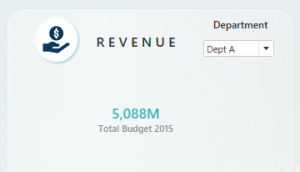

A simple drop-down filter can be used to filter the view of our requirements as shown in the visualization above.
In this example, Dept A has been selected such that the Total Budget is shown only for Dept A. Once we select Dept B, the Total Budget shows the respective value for Dept B
Use Case 2:

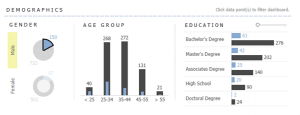
In the visualizations above, we can see the customer demographics related to gender, age group and educational status. With the help of Tableau’s Filter Actions, one can click on a particular segment and filter the rest of the visualizations as per the requirement.
For example, if we require to find how many customers in the age group of 35-44 are males, all we have to do is to click on the doughnut chart for “Male”, and the visualizations will show only the data for males. Now, we can find that the number of male customers in the age group of 35-44 is 272.
Use Case 3:
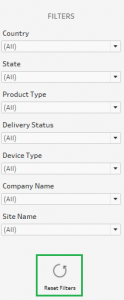
The Filter Action feature in Tableau can be leveraged to develop several creative solutions for customers. One such solution is the “Reset Filter” as shown in the above visualization.
With a combination of filters and filter actions, one can develop a reset filter that, on clicking, would reset all the currently applied filters on the dashboard and bring it back to its original unfiltered view. This comes in handy if the dashboard consists of multiple visualizations and contains heavy data.