How AI Decision-Making is Improving Enterprise Outcomes
Blog
Share 
Tableau with AWS: Business Intelligence and Data Analysis of a Higher Order
 11 April 2023
  SACHIN ULLATIL
 The cloud-based approach delivers:
1. Better performance2. More flexibility
3. Enhanced cost savings
4. Improved security
5. Facilitates excellent teamwork opportunities
Specifically, Tableau on AWS lets you process data more quickly and scale up or down resources as needed. Plus, you can access a range of AWS services to optimise your Tableau setup. AWS also provides tools to help you save money and a secure environment to protect against cyber threats and data breaches. Ultimately, Tableau on AWS enables teams to collaborate more efficiently, taking their data analysis and business intelligence to the next level.
There are several other benefits to using Tableau on AWS beyond scalability, cost, and security. Here are some additional insights:
1. Faster Deployment: With Tableau on AWS, you can deploy new instances of Tableau in minutes rather than days or weeks as you would with on-premises infrastructure. This is because AWS has pre-configured templates for Tableau that make it easy to spin up new instances quickly. 2. Better Performance: Tableau on AWS is designed to exploit AWS's high-performance infrastructure. Tableau runs faster and more efficiently on AWS than on traditional on-premises infrastructure. 3. Integration with Other AWS Services: Tableau on AWS integrates seamlessly with other AWS services, such as Amazon S3 for data storage, Amazon Redshift for data warehousing, and Amazon EMR for big data processing. This makes building a complete analytics solution easier by using Tableau and other AWS services. 4. Improved Disaster Recovery: With Tableau on AWS, disaster recovery is built. AWS provides automated backup and recovery services to quickly recover your Tableau environment and data if there is a disaster or outage. 5. Global Reach: AWS has data centres worldwide, meaning you can deploy Tableau in the region closest to your users for better performance. This is especially important for organisations with a global presence.Overall, Tableau on AWS offers several advantages over on-premises infrastructure. By leveraging AWS's scalability, cost-effectiveness, and security, organisations can run Tableau more efficiently and with better performance. Additionally, AWS's integration with other services and global reach make it an attractive option for organisations looking to build a comprehensive analytics solution.
Tableau Server on AWS deployment options
The following list outlines the available options for deploying Tableau Server on AWS:
1. Self-Deployment on EC2 Instance: This option involves users provisioning and configuring an EC2 instance and deploying Tableau Server. This provides the most significant control over the deployment process and can be customised to specific needs. However, it also requires more expertise and effort from the user.
2. Quick Start Deployment: The Tableau Server on AWS Quick Start provides an automated deployment process using AWS CloudFormation templates. This simplifies the deployment process and ensures that best practices are followed. However, it may be less customisable than self-deployment.
3. AWS Marketplace Deployment: Tableau Server is also available on the AWS Marketplace with pre-built AWS CloudFormation templates. This provides a quick and easy way to deploy Tableau Server, with different pricing and instance options public. However, users may have less control over the deployment process than over self-deployment.
Users should evaluate their specific needs and expertise when selecting a deployment option. Self-deployment provides the most significant control and customisation, while Quick Start and AWS Marketplace deployment offer simplified and quick deployment options.
When you use Tableau on Amazon Web Services (AWS), you unlock a plethora of advantages that outshine traditional on-premises infrastructure.
Related Articles
Tableau Desktop vs Tableau Server vs Tableau Cloud: What's in Store for You
What is Tableau Desktop:
Tableau Desktop is a desktop-based version of the software that is installed locally on your computer. It provides a user-friendly interface that allows users to create interactive visualizations, reports, and dashboards by dragging and dropping data onto the canvas. Tableau Desktop supports a wide range of data sources, including spreadsheets, databases, and cloud-based services. It also provides advanced features such as calculated fields, table calculations, and data blending. Users can save their work locally or publish it to Tableau Server or Tableau Online.
For the purpose of learning and exploring dashboards developed by various users online, Tableau Public can also be utilized. This free-to-use feature allows users to create interactive visualizations and publish them on the web. It is designed to help users of all skill levels, from beginners to advanced analysts, to explore, create, and share data visualizations online.
Key features of Tableau Desktop
- • Powerful and flexible: Offers a full range of features for data analysis and visualization, allowing for deep customization.
- • Fast performance: Enables quick data exploration and visualization creation due to local processing power.
- • Offline functionality: Work on your visualizations even without an internet connection.
- • Customization options: Provides control over server configuration and some customization options.
- • Cloud-based convenience: Accessible from anywhere with an internet connection, facilitating remote work and collaboration.
- • Scalability and ease of use: Highly scalable to fit various team sizes and offers a user-friendly interface for sharing insights.
- • Reduced IT burden: Tableau handles maintenance and upgrades, freeing up your IT resources.
- • Always up-to-date: Ensures access to the latest features and functionality without manual updates.
- • Fast performance.
- • Offers a wide range of features for data analysis and visualization, including data blending, calculations, and advanced chart types.
- • Enables complete customization of dashboards and views to meet specific needs.
- • Provides a familiar desktop application experience for many users.
- • Leverages local processing power for quick data manipulation and visualization creation.
- • Ideal for working with large datasets or complex calculations.
- • Enables smooth interaction with dashboards and visualizations.
- • Individual data analysts and creators exploring complex datasets.
- • Building custom dashboards and reports for specific departments or projects.
- • Creating prototypes and mockups for data visualizations.
- • Secure on-premises deployment.
- • Collaboration and sharing.
- • Scalability for on-premises.
- • Customization options.
- • Data remains on your own infrastructure, ideal for organizations with strict data security and compliance requirements.
- • Enables real-time collaboration on visualizations with colleagues.
- • Can be scaled to accommodate growing teams and increasing data volumes.
- • Offers some control over server configuration and customization of user roles and permissions.
- • Financial institutions and healthcare organizations with sensitive data.
- • Sales teams collaborating on sales performance dashboards.
- • Large enterprises with a high volume of data users.
- • IT administrators managing user access and security settings.
- • Cloud-based convenience.
- • Scalability and ease of use.
- • Reduced IT burden.
- • Always up-to-date.
- • Accessible from any device with an internet connection, facilitating remote work and collaboration.
- • Highly scalable to fit various team sizes, from small teams to large enterprises.
- • Tableau handles server maintenance, upgrades, and security patches.
- • Provides access to the latest Tableau features and functionalities like Tableau Pulse and AI capabilities for next-gen experiences
- • Remote teams working on data analysis projects together.
- • Small and medium-sized businesses looking for a quick and easy BI solution.
- • IT departments with limited resources to manage on-premises BI infrastructure.
- • Organizations that need to stay current with the latest data visualization trends.
What is Tableau Cloud (formerly Tableau Online):
Tableau Online is a cloud-based version of the software that allows users to access and share their Tableau visualizations, reports, and dashboards from anywhere with an internet connection. It provides the benefit of being able to collaborate with other users in real time. Users can connect to various data sources and perform advanced data analysis using features like calculated fields and table calculations. Tableau Cloud also provides a range of sharing options, including embedding dashboards in websites and sharing them via email.
Tableau Pulse is available on Tableau Cloud, empowering every employee with intelligent, personalized, and contextual insights delivered in the flow of work. Tableau Pulse leverages generative AI to present insights in both natural language and visual formats, simplifying the process of identifying critical metrics, gaining actionable insights, posing questions, and connecting data to real-world business scenarios. Integrated with the AI capabilities of the Einstein Trust Layer, a secure AI architecture, Pulse ensures that teams can harness the power of generative AI while safeguarding their customer data.
Key features of Tableau Cloud
Tableau Desktop, Tableau Server, and Tableau Cloud: A Comparison
Let’s dig deeper into the capabilities of Tableau Desktop, Server, and Cloud, exploring how each solution can empower organizations to make use of the full potential of their data and drive actionable insights:
1. Tableau Desktop
What does Tableau Desktop Offer You:
Benefits of Tableau Desktop:
Tableau Desktop Use Cases:
2. Tableau Server
What Does Tableau Server Offer You:
Benefits of Tableau Server:
Tableau Server Use Cases:
3. Tableau Cloud (formerly Tableau Online)
What Does Tableau Cloud Offer You:
Benefits of Tableau Cloud:
Tableau Cloud Use Cases:
Tableau Pricing
Tableau provides flexible pricing options tailored to different organizational needs. Pricing is based on factors such as headcounts, licensing type, and specialized roles. Users can opt for individual licenses suited to their specific requirements.
For per-user licenses, Tableau offers three distinct options, allowing users to select the most suitable plan for their needs. Additionally, Tableau provides flexibility in licensing models, including role-based, usage-based, or core-based options for embedded analytics.
Tableau offers three pricing editions ranging from $15 to $70, catering to various budgetary constraints. Users can explore the features and capabilities of each edition through a free trial before deciding. Evaluate the different pricing editions to determine which aligns best with your budget and requirements.
Tableau Creator
Includes: Tableau Desktop, Tableau Prep Builder, Tableau Pulse, and one Creator license on Tableau Cloud Pricing: $70.00 (1 User Per Month)
Tableau Viewer
Includes: Tableau Pulse and one Viewer license of Tableau Cloud Pricing: $15.00 (1 User Per Month) Learn More: https://www.tableau.com/pricing/teams-orgs
Book a Tableau Free Trial
Are you all in for a free demo? Connect with us: Tableau Free Trial
Disclaimer:
The pricing information provided in this blog for Tableau products and services is subject to change at any time without notice. The pricing may vary based on factors such as promotions, changes in pricing policies, or updates from Tableau. We recommend visiting the official Tableau website or contacting Tableau sales representatives for the most current pricing information. This blog is not responsible for any discrepancies or changes in pricing.

Beinex Gets an Upgrade to Snowflake Services Partner Premier Tier
This significant milestone reflects our unwavering commitment to delivering the best solutions to our customers' data challenges. With this enhanced partnership, we are poised to offer our customers unparalleled opportunities to leverage Snowflake's unique architecture and revolutionise their data-driven strategies.
Beinex: The First Snowflake Premier Partner in the Middle East
Beinex is the first Data & Analytics firm in UAE to enter Snowflake Services Partner Premier Tier. Beinex's exceptional service quality and the expertise of its consultants, scientists, and engineers have been demonstrated through years of unparalleled dedication to clients. The partnership between Beinex and Snowflake is set to revolutionise how businesses unlock the true power of their data.
The New Status Helps Us Serve You Even Better!
Snowflake's cutting-edge cloud data platform has garnered widespread recognition for its ability to deliver unmatched performance, scalability, and ease of use.
By attaining the Premier Tier Partner status:
- Beinex can further leverage Snowflake's advanced capabilities and integrate them seamlessly into your solutions.
- Enable and empower Digital Transformation at an accelerated pace for our clients with experience and competency of the right kind in accompaniment.
- Aid our customers with the tools they need to extract maximum value from their data, propelling them towards success in an increasingly data-centric world.
Snowflake's architecture utilises a cloud-native approach, separating storage and compute, which results in unparalleled flexibility and scalability. This means that businesses can dynamically scale their computing resources as needed without the limitations of traditional on-premises solutions.
By embracing this architecture, our customers can say goodbye to lengthy and resource-intensive data processing times, paving the way for faster time-to-insights and improved operational efficiency.
Beinex+ Snowflake
The collaboration between Beinex and Snowflake has opened a new realm of possibilities for our mutual customers. The clients are further assured of the superior knowledge and competence possessed by Beinex’s league of Data Engineers, Data Scientists and Consultants in all matters Snowflake.
Now, organisations can experience a quantum leap in their data processing capabilities by harnessing the power of Snowflake's unique architecture. The ability to process vast amounts of data with lightning speed enables businesses to derive real-time insights and confidently make critical decisions.
Our partnership with Snowflake enables us to offer you advanced features like automated tuning and elastic compute, along with analytics modernisation services, to help your organisation realise exponential Return on Investment.
A Major Milestone for Beinex
The attainment of Snowflake Services Partner Premium Tier marks an exciting milestone for Beinex. This partnership underscores our dedication to delivering exceptional data solutions and reinforces our commitment to staying at the forefront of industry advancements. Together, Beinex and Snowflake are primed to transform how businesses harness their data's true potential, driving innovation and success in the digital era.
Infusing a Dash of Freshness in Tableau: Relaunching Tableau Online as Tableau Cloud!
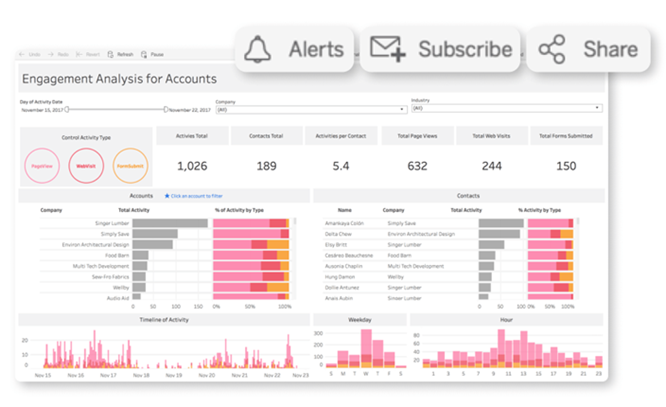
Tableau Cloud is a web-based data visualization tool. It is a part of the futuristic notion that enabled the evolution of a completely hosted, cloud-based solution, enabling wiser decisions through quick, flexible, and simple analytics. Tableau Cloud helps more people and teams obtain insights and become more innovative and competent decision-makers by distributing reliable data across enterprises, eventually leading to better, data-driven outcomes.
Tableau Cloud takes pride in the fact that the system is built to fit any enterprise architecture, with industry-leading security features, the highest certification requirements such as SOCII and ISO, and best-in-class governance capabilities to guarantee your data is always in the right hands.
The expected features are all here, with solid and intelligent additions such as Advanced Management, Data Stories, new embedded functionality, etc. These vital advancements add to the advantages of moving Tableau to the cloud, such as time savings, flexibility, and decreased costs. Still, they also give insights that evolve scale without having to install or maintain any software or hardware.
The most wanted features are here:
Advanced Management - Advanced Management contains several operational insight elements to gain information into visualisation load times, user interactions, number of views, and more. Admin Insights delivers easy-to-understand visualisations derived from the environment's usage statistics, and the Activities Log gives granular event data to create a record of activity. The newly added feature helps to handle critical analytics with ease. Features like flexible control, better security and manageability, and limitless scalability are designed to help the business thrive.
Data Stories – Data stories help to get clear, automated explanations for dashboards in no time. Make dashboard analytics simple with clear, automatic explanations. Big data is divided into critical aspects, and insights are provided in simple terminology
Embedded Analytics – Embedded Analytics integrates analytics seamlessly into the products and applications, surfacing insights to the users wherever they are, including public domains. It's straightforward to configure, integrate, and deploy Embedded Analytics right into your applications, products, and online portals. Tableau Cloud will allow administrators to share their workbooks and visualisations with the public, enabling users to view their information without logging in.
Tableau Cloud is an easy-to-use self-service platform, and all you must do is prepare your data, author, analyze, collaborate, publish, and share on Tableau Cloud
 Source: https://www.tableau.com/products/cloud-bi
Tableau Cloud is user-friendly, and its activation can be done with a finger snap. The first step is to configure the authentication mechanism and securely publish interactive dashboards and data because it is managed and hosted by Tableau.
The material will then be accessible from any browser or mobile device, allowing the team to collaborate and share analytics with everyone, anywhere. Simple, right!
Feel free to request a free trial using this link.
Thrive in Synergy: Leveraging the Confluence of Business Intelligence & Advanced Analytics
In this data-driven world, enterprises are dependent on humongous quantities of data that are subsequently analysed to uncover trends previously hidden and to carry out business functions. New tools, techniques, and technologies like those of Business Intelligence, Advanced Analytics, Machine Learning are used to analyse data and devise insights-informed strategies.
Also, they help entrepreneurs by guiding them to plan day-to-day operations, ensure fast and accurate reporting, increase revenue, identify new revenue streams, identify revenue leakage…the list is virtually endless.
Advanced Analytics
Gartner explains Advanced Analytics as an autonomous or semi-autonomous examination of data or content using sophisticated techniques and tools to discover deeper insights, make predictions, or generate recommendations. It uses Machine Learning, Artificial Intelligence, Predictive Analytics, Data Visualisations, and Text Mining to examine large data sets.
In fact, Advanced Analytics is generally comprised of two divisions:
- Predictive Analytics
- Prescriptive Analytics
Predictive Analytics: What might happen in the future
Predictive Analysis is the third and most critical process of Advanced Analytics. It uses techniques like artificial intelligence, data mining, machine learning, modelling, and statistics to make predictions. Predictive modelling helps businesses like healthcare, marketing, sales, supply chain etc. to optimize operations, improve customer satisfaction, manage budgets, identify new markets, anticipate the impact of external events, develop new products and set business, marketing and pricing strategies.
Prescriptive Analytics: What should be done
Prescriptive analytics is a vital tool used in creating data-driven decisions. optimizing operations, growing sales, managing risks formulating strategies, and reaching organizational goals. It uses statistics and modelling to recommend future actions by applying data to the decision-making process.
Advanced Analytics and Business Intelligence Market Size
The Advanced Analytics market is showing continual progress as enterprises embrace these tools to effectively manage complex business processes. Reportlinker.com predicts that the global Advanced Analytics market size may grow from USD 33.8 billion in 2021 to USD 89.8 billion by 2026, at a Compound Annual Growth Rate (CAGR) of 21.6%.
A similar trend can be noticed in the case of the Business Intelligence market too. To quote Fortune Business Insights, “the Business Intelligence market is set to reach USD 43.03 Billion by 2028 in connection with rapid digitisation and robust demand for data personalisation to foster market development”.
Business Intelligence
Advanced Analytics is all about predicting future strategies, whereas Business Intelligence is focused on past performance, relying on methods such as querying, reporting, and dashboards. It uncovers trends and presents findings through visualization tools. The results show that companies adopt new approaches to increase operational efficiency and improve sales and customer relations through real-time analysis.
Functions of Business Intelligence are listed below:
Data Mining
Data mining is the process of unearthing information and patterns from massive datasets to visualizing in dashboards to generate inferences to assist the decision-making process. By adopting various techniques and procedures, knowledge is extracted to solve business problems to promote sales and marketing.
Process Mining
Powered by Data Mining and Power Analytics, Process Mining extracts insights from the existing data and helps to find the bottlenecks that hinder efficiency and compliance. It ensures a better customer experience, loT process improvement, identifies and analyses supply chain management weak links, optimises procurement and speed-up payment collection.
Complex Event Processing
CEP employs a set of techniques to analyse Big Data for real-time benefits. Opportunities and threats in business operations are identified and monitored to pave the way to success. Companies adopt CEP for fraud prevention and detection, real-time marketing, stock market trading and allied areas.
Business Performance Management
Widely known as Corporate Performance Management (CPM), BPM implies all processes or methodologies that optimise business performance. It also initiates the achievement of business goals like budgeting, planning, and forecasting and helps to improve employee performance. It identifies risks, selection of goals for progressive development, and streamlines financial processes.
Benchmarking
Benchmarking process is evaluating the management practices of one company with its best counterpart. Comparing the organisational processes in relation to the best performances allows companies to evolve by developing plans to improve their tactics.
Top 5 Advanced Analytics Tools
Alteryx: A self-service platform that can help users extract, clean and analyse data through an automated process.
Anaconda: It is an open-source Python and R-focussed platform to analyse and visualise data.
Google Cloud Platform: Known to be one of the enormous machine learning stacks, Google Cloud AI offers many products to analyse and manage data in real-time.
Knime: An open-source software that visualises data flows and helps discover new insights with minimal or no programming.
MS Azure: It is a platform (PaaS) that combines data from various sources, then stores and finally transforms it for different purposes.
Top 5 Business Intelligence Tools
Tableau: Tableau supports multiple data sources to easily analyse and visualise data in handy dashboards.
Power BI: This business analytics tool which can be accessed from anywhere helps in identifying real-time trends and delivering reports via real-time dashboards.
Qlik sense: It is a popular and complete Business Intelligence tool with its unique search and conversational analytics platform that discover new observations using natural language.
Micro strategy: It offers high speed and powerful dashboarding, cloud solutions and hyper-intelligence that can be accessed from a laptop or mobile.
IBM Cognos Analytics: Designed to discover even hidden patterns, Cognos Analytics interprets and presents data in a visualised pattern.
Conclusion
Business Intelligence and Advanced Analytics go hand in hand, from assisting business operations to improving customer satisfaction. Yet they are distinct from each other in their own ways. The amalgamation of these two technologies – Advanced Analytics and BI – improves the efficiency of business operations, delivering predictions based on historical and present data and enhancing performance in sales, maintenance, and customer satisfaction.
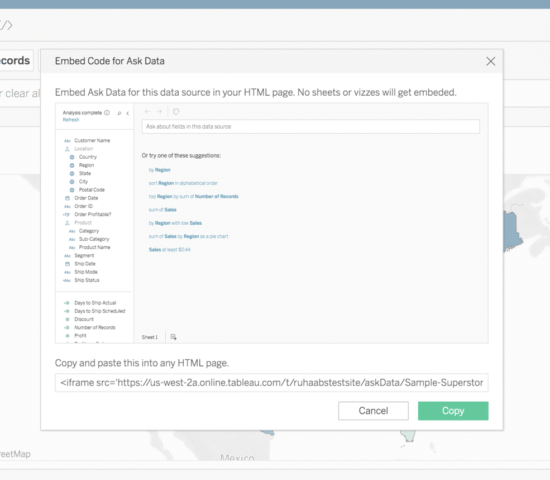
TABLEAU IS UPGRADED TO 2021.3: LET CELEBRATIONS CONTINUE FROM THE LAST QUARTER
When the sliver of thought -- that we have seen all that Tableau can do -- crosses our mind, just pay witness to a meteor shower of new features lighting the horizon up! Tableau is officially upgraded to 2021.3.
Tableau 2021.2 was a remarkable update in itself: it included ‘ask and explain data’ for viewers, allowing connected desktops, Collections, and many more valuable options and features.
So, what does the latest upgrade feature? In one go, the following list encapsulates the whole gamut of supplements:


- Improvements to Data Prep Experience
- Linked tasks
- Generate rows
- Improvements to Tableau Catalog
- Data quality warnings in subscription emails
- Inherited descriptions in web authoring
- Slack Integration
- Additional Features
- Customise the set of workbooks on the homepage
- Rename published data sources directly in Tableau Online or Server
- Authors of a flow can get alerted automatically provided any of the jobs fail and can set up an appropriate warning on the data for consumers well in advance.
- Any flow can be scheduled by customers, or they can extract refresh to run when new data arrives, saving them time and resources.
(Image 1: Linked Tasks on Tableau Prep)
Besides, Tableau Prep Conductor can generate a set of rows that are otherwise missing based on dates, date times, or integers. This is of huge importance as it allows users to fill gaps in data quite easily to ultimately ensure that processes downstream have all the requisite datasets to work on and create highly accurate and precise visualisations. Please see Image 2 for a quick understanding of the feature:
(Image 2: Generate rows on Tableau Prep)
Improvements to Tableau Catalog Next in the line comes improvements to Tableau Catalog. Two features need special mentioning:- Data quality warnings in subscription emails, and
- Inherited descriptions in web authoring
- Shared content
- Data-driven alerts
- @mention
(Image no.3)
Add to this the ability to rename published data sources directly in Tableau Online or Server on the data source page; the upgrade is a real treat to data rockstars. (See image no. 4) Practitioners point out that The REST API can also be used when changing a large number of workbooks to minimise efforts.
(Image no.4)
No need to generate a newly published data source to change the name. No need to manually change all workbooks on the Desktop to use that newly published data source, which was highly frustrating! So, welcome to Tableau 2021.3. Let us uncomplicate and perpetually so! Co-Author : Rakesh Neelakandan