How AI Decision-Making is Improving Enterprise Outcomes
Blog
Share 
Know Your Options Before You Become One da Vinci of Tableau
 11 May 2022
  Sumi S
 The Primary Means to Narrate Stories in Tableau
We can represent the visuals using the following three formats on Tableau:
1. Sheets: Spaces where we can build individual visuals are called sheets. A worksheet has a single view in its sidebar, as well as shelves, cards, legends, and the Data and Analytics panes. A workbook is a sheet file structure along the lines of Microsoft Excel. It includes sheets that can function as a worksheet, a dashboard, or even a story
 Source: https://help.tableau.com/current/pro/desktop/en-us/inspectdata_describe.htm
2. Dashboards: Most commonly used reporting format, a dashboard is a layout where sheets are arranged in a meaningful manner. It is a collection of views that helps you to compare a variety of data at the same time. If you have a set of views that should be reviewed every day, then you can create a dashboard that displays all of the views at once rather than navigating to separate worksheets. Think of the efficiency gains that this can bring about.
 Source: https://www.tableau.com/about/blog/2020/5/6-dashboards-tableau-partners-help-you-mitigate-covid-19
3. Story:Sheets or dashboards arranged in a sequence to convey information. A story is a collection of visuals that work together to convey information. Stories can be created to tell a data narrative, provide context, show how decisions affect outcomes, or simply make a compelling case.
 Source: https://help.tableau.com/current/pro/desktop/en-us/stories
Default Charts in Tableau
Through a set of default charts created with Tableau, data sets can be displayed in a comprehensible way. Let's have a look at a few types of charts:
1. Area Chart:An area chart is a line chart with a colour shaded area between the line and the axis. These charts constitute the most common approach to illustrate stacked lines and are often used to represent accumulated totals over time.
 Source: https://help.tableau.com/current/pro/desktop/en-us/qs_area_charts.htm
2. Bar Chart:Place a dimension on the Rows shelf and a measure on the Columns shelf to make a bar chart or vice versa. We may compare numerical data such as integers and percentages using bar charts. Each variable's value is represented by the length of each bar. Bar charts, for example, might demonstrate how much money a small business spends on various expenses.
 Source: https://www.tableau.com/data-insights/reference-library/visual-analytics/charts/bar-charts
3. Box-and-whisker Plots:When demonstrating the distribution of data points across a specified metric, box-and-whisker plots, also known as box plots, are an excellent chart to employ. The ranges within the variables measured are represented in these graphs. These graphics are useful for comparing the distributions of multiple variables.
 Source: https://help.tableau.com/current/pro/desktop/en-us/buildexamples_boxplot.htm
4. Bubble cloud: In bubble clouds, data is displayed in a cluster of circles. Individual bubbles are defined by dimensions, while individual circles are defined by measures. A bubble chart's design allows it to display multiple variables. Individual bubbles represent dimension field values, while measure field values define the size and colour of the bubble. As a result, we can examine a plot with at least three variables, one dimension and two measure fields.
 Source: https://help.tableau.com/current/pro/desktop/en-us/buildexamples_bubbles.htm
5. Bullet Graph:Bullet graphs are a type of bar graph that was created to replace dashboard gauges and metres. When comparing the performance of a major metric to one or more other measures, a bullet graph is beneficial. A bullet graph can help you visualise your objective, the current data set, and past data sets; all in one visualisation if you have a target goal that you need to meet on a regular basis
 Source: https://www.tableau.com/data-insights/reference-library/visual-analytics/charts/bullet-graph
6. Cartogram:Choropleth Maps, also known as Filled Maps, are a powerful tool for studying geographic data, especially for maps with a lot of detail (e.g., US by counties or ZIP codes). They make it simple to detect geographical hotspots and then drill down into these areas using several visualisation options.
 Source: https://www.pluralsight.com/guides/build-filled-maps-in-tableau
7. Click View:The circle view is a useful representation for comparative analysis. It's the same as using the circle marker on a scatter plot. Every mark is in the shape of a circle and can be used for subsequent actions.
 Source:https://interworks.com/blog/ccapitula/2014/10/17/tableau-essentials-chart-types-circle-view/
8. Gantt Chart:Gantt charts are used in project management to depict the length of time between events or activities. As a project management tool, it highlights the interdependencies between activities and illuminates the workflow timeline.
 Source:https://help.tableau.com/current/pro/desktop/en-us/buildexamples_gantt.htm
9. Heat Map:In a heat map, data is displayed along with colours. Using one or more Dimensions members and the Measure value, a heat map can be created. Heat Map helps to compare data by colour. For example, how many products have failed to meet the company's expectations, and how many products have exceeded expectations, and so on.
 Source:https://help.tableau.com/current/pro/desktop/en-us/buildexamples_highlight.htm
10. Histogram:A histogram is a graph that depicts a distribution's form. It divides values for a continuous metric into bins and segregates a set of data points into user-specified ranges. The histogram, which resembles a bar graph in appearance, condenses a data series into an easily interpreted visual by grouping many data points into logical ranges or bins.
 Source: https://help.tableau.com/current/pro/desktop/en-us/buildexamples_histogram.htm
11. Scatter Plot (2D or 3D):Scatter plots are a type of graph that is used to show the correlations between numerical data. They are used to depict the link between three variables by plotting data points on three axes. Each column on the X, Y, and Z axes is represented by a marker, whose position is determined by the values in the columns.
 Source: https://www.dataplusscience.com/TabCharts/scatterplotsize.html
12. Streamgraph:Streamgraph shows how a number value (Y-axis) changes in response to another numeric value (X-axis). It is a sort of stacked area chart. The relative proportions of the entire can be studied using a stream chart.
 Source: https://greatified.com/2018/09/17/how-to-build-a-stream-graph-in-tableau-software/
13. Text Tables:Text tables (also called cross-tabs or pivot tables) are created by placing one dimension on the Rows shelf and another dimension on the Columns shelf. Then, on the Marks card, slide one or more measures to Text to complete the view.
 Source: https://help.tableau.com/current/pro/desktop/en-us/buildexamples_text.htm#:~:text
14. Treemap:Treemaps are used to show data in the form of nested rectangles. Dimensions define the structure of the treemap, while measures define the size or colour of the individual rectangles. It is a simple data visualisation that can provide information in a visually appealing format.
 Source: https://help.tableau.com/current/pro/desktop/en-us/buildexamples_treemap.htm
15. Word Cloud:The word cloud is an excellent visual for representing the frequency of words in a given volume of Text. In a word cloud, the most important or unique words from the data are arranged in groups. The main goal of making a word cloud is to provide the viewer with a quick understanding of the important and unique words in the data.
 Source: https://www.edupristine.com/blog/creating-word-cloud-tableau
Custom Visuals in Tableau
Tableau also provides a range of custom visuals. Creating them is just a question of one's expertise in Tableau.
1. Dot Distribution Map: Maps that help to spot visual clusters are known as point or dot distribution maps. Dot distribution maps are excellent for displaying how data points are dispersed.
 Source: https://help.tableau.com/current/pro/desktop/en-us/maps_howto_pointdistribution.htm
2. Network:Nodes and edges make up a network graph. By connecting nodes with similar features, network visualisations show relationships between items. A network graph is a type of data visualisation that allows consumers to quickly grasp data relationships. Nodes are single data points with edges connecting them to other nodes. The relationship between two or more nodes is represented by edges. This enables the user to easily visualise clusters and establish linkages.
 Source: https://ladataviz.com/2019/12/15/build-a-network-graph-in-tableau-in-three-steps/
3. Polar Area:The Polar Area Chart, also known as the Coxcomb chart, resembles a pie chart except that all of the slices have the same angle and the length of the slice that extends spirally from the centre represents quantity.
 Source: https://tableau.toanhoang.com/creating-a-polar-chart-in-tableau/
4. Radial Tree:A radial bar chart is a type of pie chart. Like a pie chart, it depicts the relationship of parts to the whole, but it can also include subcategories for each part of the total. Each category in the data series plotted in a radial bar chart is assigned a different colour, whereas all subcategories are assigned the same colour.
 Source:https://boraberan.wordpress.com/2014/12/31/radial-treemaps-bar-charts-in-tableau/
5. Timeline:The timeline chart, as the name implies, depicts the significant events that occur in the month, year, or even day. The timeline can also be used as a calendar to display forthcoming events.
 Source: https://playfairdata.com/how-to-make-a-timeline-in-tableau/
From pros to amateurs to Iron Viz finalists, Tableau is a name to reckon with in the field of Data Visualisation. For those who are new to Tableau, it is a data visualisation software or application with potent potential being explored by millions of data visualisation personnel belonging to a wide spectrum of grades.
By default, Tableau supports a variety of built-in charts such as bar charts, line charts, area charts, scatter plots, maps and much more. Additionally, one can build custom visuals as well.
Related Articles
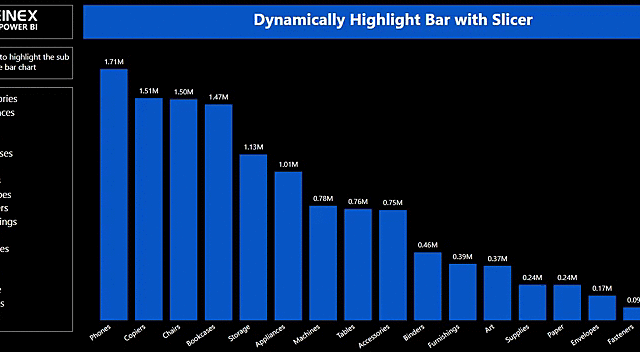
Dynamic highlight bar chart with slicer
But this does not apply to a slicer visual, which only has cross-filtering and no interaction feature. This made me wonder if we can achieve cross-highlight with a slicer visual through some work-around that allows me to compare one category with other easily through cross-highlight.
After some research, I may have found a way to do this. Below are the steps in detail to achieve this.
Normal filtering of data with slicer:
The below example shows normal slicing of data where only the selected value will be reflected in the bar chart. This does not allow me to compare other values easily or focus in on the selected value through highlighting.
 Dynamic highlighting with Slicer:
The below example shows the dynamic highlighting where I can choose the categories in the slicer to highlight for comparison with the other categories. I can easily focus on the selected categories and compare the measure values with other categories.
Dynamic highlighting with Slicer:
The below example shows the dynamic highlighting where I can choose the categories in the slicer to highlight for comparison with the other categories. I can easily focus on the selected categories and compare the measure values with other categories.
 Solution:
First, I have created a disconnected table with the categories. This can be easily done with the following dax formula.
Solution:
First, I have created a disconnected table with the categories. This can be easily done with the following dax formula.
 Added the measure in the field value section.
 Added category slicer from the Selected Category table
 Finally arranged them and saw the magic happen.
 Conclusion:
This goes to show the hidden features of Power BI one can explore with a little bit of tinkering with a dash of DAX. This blog is a first in a series of many nifty blogs. Hope you like it and looking forward to your feedback.
Conclusion:
This goes to show the hidden features of Power BI one can explore with a little bit of tinkering with a dash of DAX. This blog is a first in a series of many nifty blogs. Hope you like it and looking forward to your feedback.
Dynamic highlighting with Slicer:
The below example shows the dynamic highlighting where I can choose the categories in the slicer to highlight for comparison with the other categories. I can easily focus on the selected categories and compare the measure values with other categories.
Solution:
First, I have created a disconnected table with the categories. This can be easily done with the following dax formula.
Selected Category = VALUES(Orders[Category])Had made sure there is no relationship in the model view between the source table and new category table. Created a measure which will be added to the conditional formatting in data colour section in the format pane.
Selected Colour bar =
var selected_category = VALUES ('Selected Category'[Category])
var category_to_highlight = SELECTEDVALUE (Orders [Category])
var filtered = ISFILTERED ('Selected Category'[Category])
var result =
    SWITCH(TRUE(),NOT(filtered),"#0055cc", category_to_highlight in selected_category && filtered,"#0055cc","#9cd0ed")
return result
Explanation:
Selected Colour bar =
var selected_category = VALUES ('Selected Category'[Category]) // taking values from category table
var category_to_highlight = SELECTEDVALUE (Orders [Category]) // Using selected value function
var filtered = ISFILTERED ('Selected Category'[Category]) // checks if the column is filtered and will return true or false
var result =
SWITCH(TRUE(),NOT(filtered),"#0055cc", category_to_highlight in selected_category && filtered,"#0055cc","#9cd0ed")
/* The first condition checks if the there is no filtration will return all values, Then will be checking if the selected set of values is contained in the category column. The selected value will be returning a specific dark colour while the unselected value will be giving a lighter colour. */
return resultCreated a bar chart with total sales given in the value section and the category column from the source data will be given as axis. Gave the highlight effect by adding a measure in the field value section of the data colour conditional formatting.
Added the measure in the field value section.
Added category slicer from the Selected Category table
Finally arranged them and saw the magic happen.
Conclusion:
This goes to show the hidden features of Power BI one can explore with a little bit of tinkering with a dash of DAX. This blog is a first in a series of many nifty blogs. Hope you like it and looking forward to your feedback.
Building Smarter Dashboards with Tableau's AI Features
The Rise of AI-Driven Analytics
Artificial intelligence (AI) has transformed the analytics landscape, enabling organizations to automate complex tasks, identify patterns, and predict future trends. Tableau's AI-powered capabilities are designed to augment human intelligence, streamlining the analytics process and uncovering new opportunities.
Tableau's AI Features: A Brief Dive
1. Tableau Pulse: Powered by AI, Tableau Pulse offers contextual, personalized, and intelligent insights at your fingertips. It redefines data experience by making data accessible to everyone despite their expertise in data visualization tools. The Insights Platform within Tableau Pulse automates the identification of contributors, trends, drivers, and outliers for relevant metrics and streamlines and democratizes data analysis. Tableau Pulse's Metrics Layer lets KPIs and key metrics and KPIs be defined and utilized consistently across the enterprise, creating a unified source of truth for decision-making. Tableau Pulse also offers a Next-Gen Experience by offering intuitive, user-friendly metrics directly into the tools users already work with, such as email or the Tableau web app, enabling users to engage with data in real-time and effortlessly scale insights.
Real-World Application: Employing Tableau Pulse in the supply chain helps track and monitor shipping times, inventory levels, and supplier performance in real time, facilitating informed and proactive decision-making.
2. Tableau Agent: A conversational AI assistant, Tableau Agent facilitates the data journey for new analysts using generative AI to expedite the analysis process from data collection to exploration. Tableau Agent is built on the Einstein Trust Layer, ensuring enterprises' data remains safe and accessible. It streamlines the stages of analysis by effortlessly creating calculations using natural language, making the process easier and faster for technical and non-technical users. It also creates AI-generated descriptions for data sources to convey their objective and essence consistently and informatively.
Real-World Application: In dealing with customer engagement, Tableau Agent helps personalize marketing strategies and campaigns to augment customer interaction based on customer preferences and behavior.
3. Einstein Copilot for Tableau: Quickly identify trends and explore data at every analysis phase with the reliable AI assistant, Eintein Copilot for Tableau. It doesn't matter if you are a novice or a seasoned analyst, as Einstein Copilot for Tableau enhances your Tableau experience by making analytics accessible to facilitate actionable insights and informed decisions. With this feature, you can easily produce AI-generated descriptions of data assets and explore data utilizing natural language directly from Tableau Cloud Web Authoring.
Real-World Application: Utilizing Einstein Copilot streamlines data analysis for business users by offering instant and expert-level insights to the questions asked without needing any technical expertise in data analysis.
4. Tableau Explorer: This feature employs machine learning algorithms to automatically identify key insights, patterns, trends, and correlations within your data. Discovering hidden data insights with AI offers intelligent recommendations for charts, dashboards, visualizations, and dashboards. Further, Tableau Explorer generates data-driven narratives, emphasizing key findings clearly and concisely. It enables users to grasp complex data insights and make informed decisions quickly.
Real-World Application: Using Tableau Explores optimizes operational efficiency by analyzing production data, facilitating the identification of areas of process improvement, and reducing costs.
5. Predictive Analytics: Tableau's predictive models enable you to forecast future outcomes, identify potential risks, and optimize business strategies. Regression analysis identifies relationships between variables while clustering groups similar data points for segmentation. Decision trees visualize complex decision-making processes, making understanding and optimizing outcomes easier.
Real-World Application: Predictive Analytics develops predictive models to forecast revenue and sales, allocate resources efficiently, and analyze data to check for potential setbacks.
6. Natural Language Processing (NLP): Tableau's NLP capabilities allow users to ask questions and receive answers in natural language, simplifying the analytics process. Tableau's Ask Data feature enables users to ask queries in everyday language and get answers instantly. The Explain Data feature automatically describes data patterns and trends and patterns, improving understanding and insight. Besides, text analysis facilitates sentiment analysis, entity recognition, and topic modeling, unlocking valuable insights from unstructured data.
Real-World Application: NLP facilitates the sentiment analysis of customer feedback, that is, analyzing the data from reviews, surveys, and social media to understand customers' sentiments and base decisions accordingly.
7. Automated Data Preparation: Tableau's AI-driven data preparation streamlines data cleaning, joining, and aggregation, freeing up valuable time for analysis. The AI-powered algorithms help identify and rectify errors, propose optimal data formats, and detect inconsistencies and missing values. It ensures data accuracy, completeness, and trustability, allowing users to concentrate on higher-level analysis and decision-making.
Real-World Application: Automating data preparation for financial reports simplifies the process by reducing manual effort and enhancing the accuracy of results.
Organizations across various industries have successfully leveraged Tableau's AI features to:
1. Enhance customer experience as predictive analytics helps identify customer churn patterns.
2. Optimize operations as automated data preparation streamlines supply-chain management.
3. Drive revenue growth as AI-driven insights uncover new business opportunities.
Dashboards that Talk: Revolutionizing Business Insights
Interactive dashboards that engage with you have revolutionized how businesses interact with data, ushering in an era of conversational analytics. Tableau, a pioneer in data visualization, has been at the forefront of this revolution, empowering organizations to unlock hidden insights and drive informed decision-making. With Tableau's natural language processing (NLP) capabilities, users can ask questions and receive answers in a conversational format, eliminating the need for tedious data analysis. This seamless interaction lets stakeholders focus on strategic decision-making rather than getting bogged down in data intricacies. Furthermore, Tableau's automated insights and predictive analytics capabilities allow businesses to forecast trends, identify potential risks, and optimize operations, giving them a competitive edge in today's fast-paced market. The implications of interactive dashboards extend far beyond data analysis, transforming the very fabric of business operations. Executive dashboards can now provide real-time strategic guidance, while sales dashboards can predict performance and identify areas for improvement. Operational dashboards can monitor processes in real time, enabling swift corrective action. Moreover, customer service dashboards can deliver personalized support, fostering enhanced customer experiences. As AI and NLP continue to advance, the possibilities for talking dashboards will only expand, enabling businesses to tap into unprecedented levels of insight and innovation. By embracing these cutting-edge technologies, organizations can unlock new avenues for growth, efficiency, and competitiveness, ultimately redefining the future of business intelligence. With Tableau at the helm, the era of conversational analytics has truly begun, and the potential for transformation is vast.
Building Smarter Dashboards
To harness the full potential of Tableau's AI features, consider the following best practices: 1. Define Clear Objectives: Align your dashboard with key business goals and objectives. 2. Select Relevant Data: Focus on high-quality, relevant data to ensure accurate insights. 3. Leverage AI-Driven Insights: Use Tableau Explorer and predictive analytics to uncover hidden trends. 4. Design Intuitive Visualizations: Create clear, concise dashboards that facilitate decision-making. In today's data-driven landscape, building smarter dashboards is critical for business success. Tableau's AI features empower organizations to unlock hidden insights, drive informed decision-making, and stay ahead of the competition. By embracing these cutting-edge capabilities and following best practices, IT professionals, business leaders, and data analysts can create dashboards that propel business growth and innovation.

Four Ways SMBs can Leverage Digital Transformation
The digital transformation uses digital technologies to transform businesses’ operations, deliver customer value, and compete in the market. For SMBs, digital transformation can provide a pathway to growth, unlocking new potential for efficiency, productivity, and innovation.
The Context and the Harvest Potential
Reports suggest that SMBs that are digitally engaged can increase their profits up to twice as fast as their offline counterparts. Digital transformation opens up new market opportunities for SMBs, driving overall growth.
Some noteworthy figures include the expected economic value of digital transformation to reach $100 trillion by 2025. While 21% of organisations believe their digital transformation efforts are complete, 87% of senior business leaders consider digitalisation a company priority, with 79% of corporate strategists indicating that it is reinventing their business and creating new revenue streams.
Moreover, 71% of leaders believe that the role of the workforce is crucial in implementing digital transformation, as employees play an essential part in driving and adopting new technologies.
How to Get Started?
To commence the digital transformation process for your SMB, you should initiate a discussion with your team regarding the concept of digital transformation and how it will impact your business. Additionally, it is crucial to consider a few points, such as:
• Identify the areas where your business is falling behind compared to your competitors.
• Determine which components of your current business plan require replacement or technological advancement.
• Evaluate the operations that are time-consuming and can be automated
Here are some key pathways in which SMBs can unlock their potential through digital transformation:
1. Embracing Cloud Computing
One fundamental way SMBs can unlock their potential through digital transformation is by embracing cloud computing. Cloud computing has become a game-changer for SMBs, providing access to powerful tools and technologies without significant upfront investment. With cloud-based solutions, SMBs can scale their operations, reduce IT costs, and gain the agility needed to compete in a fast-paced market.
Cloud computing provides SMBs access to various services, including storage, computing power, and software applications, all delivered over the Internet. Using cloud-based services, SMBs can eliminate the need for on-premise IT infrastructure, reduce maintenance costs, and free up resources to focus on core business activities.
Cloud-based solutions also offer SMBs the flexibility to scale their operations quickly and efficiently. With cloud computing, SMBs can easily adjust their IT infrastructure to meet changing business needs, whether adding new users, increasing storage capacity, or rolling out new applications.
2. Leveraging Data Analytics
Data is the lifeblood of modern businesses, and SMBs can harness the power of data analytics to gain insights into customer behaviour, market trends, and operational performance. By leveraging data analytics tools, SMBs can make more informed decisions, improve processes, and identify new growth opportunities.
Data analytics tools can help SMBs to:
• Monitor customer behaviour and preferences
• Identify trends and patterns in sales data
• Optimise pricing and inventory management
• Improve marketing effectiveness
• Enhance operational efficiency
To leverage data analytics effectively, SMBs must have the proper data management and analysis tools. This includes collecting, storing, and analysing data from various sources, such as customer relationship management (CRM) systems, sales data, and social media metrics.
3. Automating Business Processes
Automation has revolutionised how businesses operate, and SMBs can benefit from automating routine tasks and processes. Automation can help SMBs to reduce costs, increase efficiency, and improve customer satisfaction by freeing up resources to focus on higher-value activities.
Automated processes can include:
• Invoicing and billing
• Inventory management
• Payroll processing
• Customer service
• Marketing and sales
By automating these processes, SMBs can reduce errors, improve productivity, and deliver a more consistent customer experience. Automation can also free up resources to focus on more strategic initiatives, such as product development and business expansion.
4. Embracing E-commerce
E-commerce has become a vital channel for SMBs to reach customers and generate revenue. By embracing e-commerce platforms, SMBs can expand their reach, reduce overhead costs, and offer customers a convenient, digital-first experience.
E-commerce platforms provide SMBs with a range of benefits, including:
• Access to a global customer base
• Reduced overhead costs
• Increased sales and revenue
• Improved customer experience
• Flexibility and scalability
To remain competitive in the digital marketplace, SMBs must adopt online marketing strategies and cloud-based solutions for operational efficiency. Moreover, customer-centricity is the primary focus in the digital market, unlike the traditional profit-oriented approach.
Summing Up
The scope of digital transformation is vast, and there is much more to it than meets the eye. Studies show that 85% of decision-makers feel digital integration is necessary within two years or less.
As such, the future of digital transformation will feature technology at the heart of all business processes and prioritise customer satisfaction. However, there will be significant challenges regarding needing more resources and skills, which business leaders must address and mitigate.
Beinex Digital, a part of Beinex Holdings, is a digital transformation entity with a comprehensive suite of independent products that address specific business gaps, use cases, and needs. The growth strategy of Beinex Digital revolves around inducing digital transformation as a way of life for businesses worldwide.
Rather than waiting for change to happen, businesses should start acting. The question is, are you prepared to embrace digital transformation?

AI Agents Explained: How They Work, Types, Architecture & Use Cases in the UAE
AI agents are software systems that perceive their environment, reason over available data, and take action toward a goal with limited human input. Adoption is no longer experimental: AI agents are moving rapidly from experimentation into production, with enterprises increasingly deploying them in defined operational workflows. The global AI agents market is estimated at approximately $10.9 billion in 2026, up from the previous year. In the Middle East, the shift is even sharper: Microsoft's Q1 2026 Global AI Diffusion Report ranks the UAE first globally, with 70.1% of the working-age population using generative AI. This blog breaks down what an AI agent actually is, how its architecture functions, and where AI agent development services in UAE businesses are creating measurable value.

Tackling the Bias in Artificial Intelligence: Four Measures to Adopt
“AI bias” has been a trending hot subject of research and concern for a while. Recently ChatGPT, the latest language learning model released by OpenAI, has become a viral sensation. However, like many AI models before it, bias can be found in its output. AI bias is a phrase used to characterise circumstances in which ML-based data analytics algorithms exhibit bias towards specific categories of individuals. These biases are typically manifestations of pervasive societal biases about race, gender, biological sex, age, and culture.
In AI, there are two types of bias. The first is algorithmic AI bias, often known as "data bias," in which algorithms are trained with biased data. The other type of AI prejudice is societal AI bias. This is where our societal beliefs and conventions cause us to have blind spots or particular expectations in our thinking. Societal bias impacts algorithmic AI bias, but as the latter grows, we see things come full circle.
Some concerns should be addressed and resolved on a worldwide scale and other issues should be addressed locally. Every principle and standard, governing body, and people voting on things and algorithms should be verified from time to time. Making a more diverse data collection will not fix the problem. But that is just one factor.
In short, the fact is that an impartial human mind, as well as an AI system, will never be realised. After all, people are the ones who generate the skewed data, and humans and human-made algorithms are the ones who evaluate the data to find and rectify biases. However, we can overcome AI bias by validating data and algorithms and applying best practices to collect data, use data, and construct AI algorithms.
In AI, there are two types of bias. The first is algorithmic AI bias, often known as "data bias," in which algorithms are trained with biased data. The other type of AI prejudice is societal AI bias. This is where our societal beliefs and conventions cause us to have blind spots or particular expectations in our thinking. Societal bias impacts algorithmic AI bias, but as the latter grows, we see things come full circle.
What can We Do to Address AI Biases?
Here are some of the remedies:Algorithm Testing in a Real-World Situation
For example, take the case of job seekers. If the data used to train your machine learning system comes from a select group of job searchers, your AI-powered solution may be untrustworthy. While this may not be a problem if you apply AI to similar candidates, it becomes a problem when you apply it to a new group of candidates that aren't represented in your data collection. In this case, you simply ask the algorithm to apply the prejudices it learnt from the first candidates to a group of people where the assumptions may be inaccurate. To avoid this, as well as to discover and resolve these flaws, you should test the algorithm like how you would use it in the real world.Considering the So- called Counterfactual Fairness
The meaning of "fairness" and how it is calculated are up for debate. It may also change owing to external factors, implying that the AI must account for these changes as well. Researchers have also worked on a variety of approaches to ensure AI systems can meet them, such as pre-processing data, altering the system's choices after the fact, and including fairness definitions in the training process itself. A potential solution is "counterfactual fairness," which ensures that a model's choices are the same in a counterfactual world where sensitive attributes like ethnicity, gender, or sexual orientation have been altered.Consider Human-in-the-Loop Systems
The purpose of Human-in-the-Loop technology is to accomplish what neither a human nor a machine can do on their own. When a machine confronts a problem, humans must intervene and fix the problem for them. As a result of the continual feedback, the system learns and improves its performance with each consecutive run. Finally, human-in-the-loop leads to more accurate rare datasets of safety and precision.Change the Way People Learn About Science and Technology
A significant shift is required in the approach to how people are educated about technology and science. It is high time to restructure science and technology education. Science is currently taught objectively, and more transdisciplinary collaboration and educational rethinking are required.Some concerns should be addressed and resolved on a worldwide scale and other issues should be addressed locally. Every principle and standard, governing body, and people voting on things and algorithms should be verified from time to time. Making a more diverse data collection will not fix the problem. But that is just one factor.
Will Artificial Intelligence Ever be Unbiased?
The answer is both no, and yes. Well, it's feasible, but an impartial AI is only in dreams and probably it will never exist. This is because an impartial human intellect is unlikely to ever exist. An AI system is only as good as the data it gets as input. Assume you can free your training dataset of conscious and unconscious biases regarding race, gender, and other ideological concepts. In such a situation, you'll be able to build an artificial intelligence system that makes objective data-driven decisions.In short, the fact is that an impartial human mind, as well as an AI system, will never be realised. After all, people are the ones who generate the skewed data, and humans and human-made algorithms are the ones who evaluate the data to find and rectify biases. However, we can overcome AI bias by validating data and algorithms and applying best practices to collect data, use data, and construct AI algorithms.