How AI Decision-Making is Improving Enterprise Outcomes
Blog
Share 
How to Manage Alteryx Data Connections
 1 March 2023
  Sumi S
 One of the highlights of Alteryx is Data Connections. It can be relied upon to generate and handle your data connections from a central location. The user can access it using their username and password.
The main advantages of Alteryx that set it apart :
- • data connectivity is high
- • direct access to the data sources/ bases
With the help of the Manage Data Connections window, it is possible to:
- • view connections you have already created
- • view connections shared with you
- • add new connections.
3 Steps to Create and Manage Your Data Connections with Alteryx
- Adding
- Testing
- Sharing
1. To Add a Data Connection
If the user wants to add a data connection, select Add New Data Connection on the Data Connections page. Then from the Connection drop-down select the connection type.
2. Testing Data Connections
The second step is to test the data connections. A controller and two or more worker machines make up a multi-node setup of the Server. With this arrangement, the test functionality examines the connection on the controller machine rather than the individual worker computers. One should verify the identical database drivers and driver versions are installed on every system to make sure the connection will function on any of them. Connection Test FailuresThe connection tests can fail due to multiple reasons. The user can save data connections even though they have failed the connection test.
These are the most typical causes of connection tests failing:
- • The server and database can be inaccessible to you in some circumstances. For instance, only the connection end user can access the server or database in certain cases.
- • Your ability to connect to the server or database may also be blocked by network security.
- • Sometimes the server is unable to connect to the host of the database server. At that time ping the database server host while logged into the server where Server is installed to check for network connectivity. The credentials for the database are incorrect or do not have the necessary access permissions. Get in touch with the database manager.
- • The database is unavailable. To ensure that the database is operational and performing as expected, get in touch with the database administrator.
- • The Server configuration you are using has several nodes.
3. To Share a Data Connection
After creating a Data Connection, go back to the Data Connections page to share it with users or custom groups for use in Designer.Note: Keep in mind that you must connect with a Curator or the gallery administrator to make sure that they have access to the necessary data connections if you want to allow the workflow to be used by particular users or groups.
Follow the steps mentioned below to share a Data Connection:
- • Choose the shareable data connection by clicking the pencil icon on the Data Connections screen.
- • Select Users or Custom Groups on the Modify Data Connections screen.
- • Enter a user's or a group's name here.
- • Choose the user or the group.
Note: Verify that the user's machine is installed with the same or a more recent version of the Microsoft SQL Server Native Client before initiating a Microsoft SQL Server connection. Go over to Troubleshooting.
a. Cancelling Access to a Data Connection
Choose the "x" icon next to a user's name to remove their access to a connection.
b. Modify a Data Connection
- 1. Choose the pencil icon on the Data Connections page.
- 2. Alter the Name or Connection String fields on the Modify Data Connections screen.
- 3. You can share the connection with people and groups using the Users or Custom Groups pages.
- 4. Choose Save.
1. Choose the trash can icon next to the connection name to remove the connection.
Tools in Alteryx Designer
Let’s have a look at the input tools available in Alteryx Designer:1. Input Data Tool
 By connecting the Input Data tool to a file or database, you can utilise it to add data to your workflow. This tool has a wide range of configuration possibilities.
2. Directory Tool

The Directory tool can be used to return a list of all the files present in the given directory. The tool returns file names along with additional details about each file, including file size, creation, and modification dates, and more.
3. Dynamic Input Tool

Using the Dynamic Input tool, it is possible to change file names, amend database queries, or alter input pathways that were created using data from your workflow are all possible If you're reading from a database, Alteryx will do it at runtime and will dynamically select which entries are read.
4. Connect In-DB Tool

When compared to conventional analysis techniques, the Connect In-Database tool can significantly enhance performance by allowing blending and analysis on large data sets without removing the data from the database.
Without proper tools, providing answers to business concerns would be time-consuming, laborious, hazardous, and possibly impossible. Here Alteryx can be of great help as it aids you to streamline operations, automate procedures, and provide predictive and geospatial solutions. While other technologies make the same claims, Alteryx is one of the incredible tools that empowers business users and analysts in addition to IT personnel.
Related Articles

RecapAI: An AI-Powered Assistant for Priority Tracking and Follow-Through
What is RecapAI Agent
RecapAI is an AI-powered assistant that helps professionals quickly regain context after time away from work. It analyzes meetings, deadlines, communications, and updates to identify what has changed, what requires action, and what should be prioritized next. Instead of reviewing multiple tools and threads, users receive a clear, structured overview of critical follow-ups, key discussions, and upcoming priorities.
Connect With Us for a Free Demo!
How RecapAI Supports You
While you are away, RecapAI quietly keeps your workspace running. It monitors your inbox, tracks meeting updates, notes shifting deadlines, and identifies what needs your attention. It works like a calm, thoughtful assistant who knows exactly what matters and what can wait.
Our RecapAI agent welcomes you with a brief, clear summary – no scrolling, no searching, no overwhelm. You open your workspace, and everything makes sense instantly.
Your:
- • Shifted deadlines
- • Key meeting
- • Follow-ups you need to send
- • People to catch up
- • Upcoming priorities – all sorted for you.
It feels like someone has already organised your day and highlighted only what matters. RecapAI Agent isn't just a summarizer – It understands your priorities. You return after a break and instantly know what needs your attention.
Summing Up
RecapAI goes beyond simple summarization by aligning information with the user’s responsibilities and priorities. It supports focused decision-making and quicker re-engagement. The best part is that RecapAI makes sure users return to work informed, organized, and ready to act.
Connect with us if you want to know more about RecapAI: https://beinex.com/contact-us/
Infusing a Dash of Freshness in Tableau: Relaunching Tableau Online as Tableau Cloud!
Tableau Cloud is a web-based data visualization tool. It is a part of the futuristic notion that enabled the evolution of a completely hosted, cloud-based solution, enabling wiser decisions through quick, flexible, and simple analytics. Tableau Cloud helps more people and teams obtain insights and become more innovative and competent decision-makers by distributing reliable data across enterprises, eventually leading to better, data-driven outcomes.
Tableau Cloud takes pride in the fact that the system is built to fit any enterprise architecture, with industry-leading security features, the highest certification requirements such as SOCII and ISO, and best-in-class governance capabilities to guarantee your data is always in the right hands.
The expected features are all here, with solid and intelligent additions such as Advanced Management, Data Stories, new embedded functionality, etc. These vital advancements add to the advantages of moving Tableau to the cloud, such as time savings, flexibility, and decreased costs. Still, they also give insights that evolve scale without having to install or maintain any software or hardware.
The most wanted features are here:
Advanced Management - Advanced Management contains several operational insight elements to gain information into visualisation load times, user interactions, number of views, and more. Admin Insights delivers easy-to-understand visualisations derived from the environment's usage statistics, and the Activities Log gives granular event data to create a record of activity. The newly added feature helps to handle critical analytics with ease. Features like flexible control, better security and manageability, and limitless scalability are designed to help the business thrive.
Data Stories – Data stories help to get clear, automated explanations for dashboards in no time. Make dashboard analytics simple with clear, automatic explanations. Big data is divided into critical aspects, and insights are provided in simple terminology
Embedded Analytics – Embedded Analytics integrates analytics seamlessly into the products and applications, surfacing insights to the users wherever they are, including public domains. It's straightforward to configure, integrate, and deploy Embedded Analytics right into your applications, products, and online portals. Tableau Cloud will allow administrators to share their workbooks and visualisations with the public, enabling users to view their information without logging in.
Tableau Cloud is an easy-to-use self-service platform, and all you must do is prepare your data, author, analyze, collaborate, publish, and share on Tableau Cloud
 Source: https://www.tableau.com/products/cloud-bi
Tableau Cloud is user-friendly, and its activation can be done with a finger snap. The first step is to configure the authentication mechanism and securely publish interactive dashboards and data because it is managed and hosted by Tableau.
The material will then be accessible from any browser or mobile device, allowing the team to collaborate and share analytics with everyone, anywhere. Simple, right!
Feel free to request a free trial using this link.
Top Picks: Tableau 2020.4
As a frequent user of Tableau Desktop and Server, check out my top picks from the list.
• Improved dynamic parameter
• Multiple marks layer support for maps
• Block comments in calculations
• Web authoring enhancements
• Offline map support for Tableau Server
• Tableau Server Management (TSM) improvements
• Multiple key activation on Tableau Server prior to TSM initialization
• Analytics Extension for Tableau Online
• Merge duplicate external assets
• Tableau Prep Builder in the browser
Tableau Desktop
Improved Dynamic Parameter
The dynamic parameter was one of the features which I used extensively starting from 2020.1. The feature allows us to populate parameter values based on a specified field whenever the workbook is opened. We will be able to select only the field with matching data types.
The feature update announced in Tableau 2020.4 gives me more privilege to customize the Dynamic Parameter. I can now set a parameter’s range to a field’s min and max value upon opening the workbook, or when the field’s data source is refreshed.
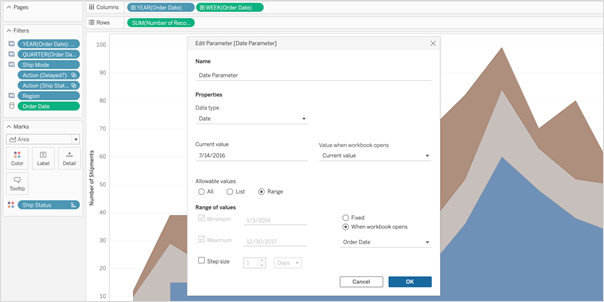 So, whenever I open the workbook or the extract is refreshed, Tableau displays the unique values within the range specified, giving more control over the parameter values displayed.
Multiple Marks Layer Support for Maps
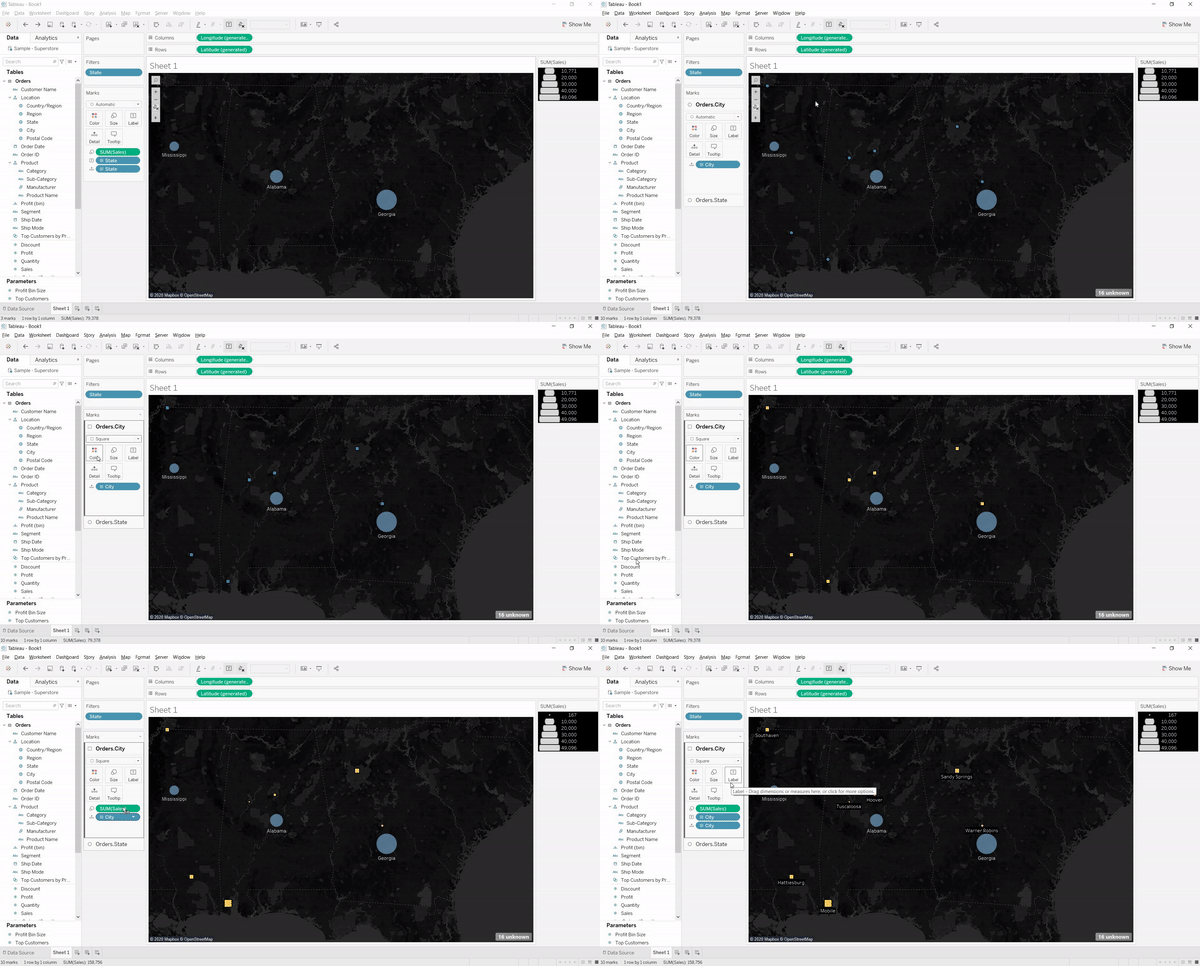
This is an exceptional feature to bring multiple spatial layers and context together to better understand and analyze geospatial data and map views. I will be able to include multiple marks layers from a data source to map visualizations and enhance the geospatial analysis. I can present more context in a single map view and perform further analysis with this feature.
So, whenever I open the workbook or the extract is refreshed, Tableau displays the unique values within the range specified, giving more control over the parameter values displayed.
Multiple Marks Layer Support for Maps
This is an exceptional feature to bring multiple spatial layers and context together to better understand and analyze geospatial data and map views. I will be able to include multiple marks layers from a data source to map visualizations and enhance the geospatial analysis. I can present more context in a single map view and perform further analysis with this feature.
 Block Comments in Calculations
Block comments is a simple yet one of the most useful features for me, which Tableau has announced in 2020.4. I often used to add comments in complex calculations for easy understanding in future references. Earlier, only single-line comments were possible, limiting the description I could add. But from now on, I can add comments of any length to calculation windows with block comments by simply starting the comment with /* and ending with */.
What makes it unique is that the new multi-line block comment feature is consistent with other popular programming languages. This feature is an example of Tableau’s on-going effort to provide its customers with an intuitive user experience.
Block Comments in Calculations
Block comments is a simple yet one of the most useful features for me, which Tableau has announced in 2020.4. I often used to add comments in complex calculations for easy understanding in future references. Earlier, only single-line comments were possible, limiting the description I could add. But from now on, I can add comments of any length to calculation windows with block comments by simply starting the comment with /* and ending with */.
What makes it unique is that the new multi-line block comment feature is consistent with other popular programming languages. This feature is an example of Tableau’s on-going effort to provide its customers with an intuitive user experience.
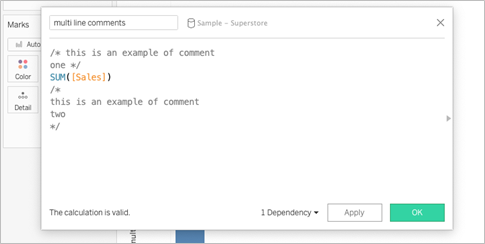 Tableau Server
Web Authoring Enhancements
Starting from Tableau 2020.4, it is possible to author dashboards from the browser just like how we design it in Tableau Desktop. With this web authoring enhancements, I can include Highlight actions, Format Mark Labels, apply filters to worksheets, create fixed sets, and even create extract in my workbooks from the browser itself. I no longer have to make changes from Tableau Desktop and publish it to the server. I can directly do it from the browser itself.
Tableau Server
Web Authoring Enhancements
Starting from Tableau 2020.4, it is possible to author dashboards from the browser just like how we design it in Tableau Desktop. With this web authoring enhancements, I can include Highlight actions, Format Mark Labels, apply filters to worksheets, create fixed sets, and even create extract in my workbooks from the browser itself. I no longer have to make changes from Tableau Desktop and publish it to the server. I can directly do it from the browser itself.
 Offline Map Support for Tableau Server
Rendering dashboards with maps is now faster compared to previous versions. Now, I can create maps using the offline map style in web authoring, ensuring the performance of map views in Tableau Server. Offline map support is a great deal for organizations with strict internet access restrictions, assuring that map view access to all its users.
Tableau Server Management (TSM) Improvements
Tableau Server Administration activities like installation, upgrade and backup are now easy like never before. I can retry installation or upgrade from the last checkpoint in case of an unexpected issue or error during installation or upgrade, saving my efforts to obliterate tableau server.
Backups can be performed twice as fast as previous versions, and I can monitor the progress with the new progress bar giving visibility into what step the backup is on and how much time is remaining.
Backups can also be scheduled using TSM command starting from 2020.4 and that is awesome. I no longer need to prepare batch script and depend on the windows task scheduler to schedule the backups on regular intervals; instead, I can schedule it with just a single command.
Multiple Key Activation on Tableau Server Prior to TSM Initialization
During Tableau Server installation, it is now possible to activate multiple license keys prior to TSM initialization. I will be able to save a lot of time by eliminating the need to restart after the installation is completed to activate multiple licenses and experience a smoother installation.
Analytics Extension for Tableau Online
The power of the Analytics extension is now unlocked in Tableau Online too. The feature was already available in Tableau Server, and it helped us dynamically perform advanced analysis with models and functions in R, Python and other platforms.
Analytics extension in Tableau Online significantly enhances the scope of using Advanced Analytics by the common users.
Merge Duplicate External Assets
Earlier, the Database or Table with similar names used to appear as multiple assets within Tableau Catalog. But, the new feature helps me to merge those multiple assets into a single one. I can manage assets easily and keep an organized view of External assets by merging the common ones.
Offline Map Support for Tableau Server
Rendering dashboards with maps is now faster compared to previous versions. Now, I can create maps using the offline map style in web authoring, ensuring the performance of map views in Tableau Server. Offline map support is a great deal for organizations with strict internet access restrictions, assuring that map view access to all its users.
Tableau Server Management (TSM) Improvements
Tableau Server Administration activities like installation, upgrade and backup are now easy like never before. I can retry installation or upgrade from the last checkpoint in case of an unexpected issue or error during installation or upgrade, saving my efforts to obliterate tableau server.
Backups can be performed twice as fast as previous versions, and I can monitor the progress with the new progress bar giving visibility into what step the backup is on and how much time is remaining.
Backups can also be scheduled using TSM command starting from 2020.4 and that is awesome. I no longer need to prepare batch script and depend on the windows task scheduler to schedule the backups on regular intervals; instead, I can schedule it with just a single command.
Multiple Key Activation on Tableau Server Prior to TSM Initialization
During Tableau Server installation, it is now possible to activate multiple license keys prior to TSM initialization. I will be able to save a lot of time by eliminating the need to restart after the installation is completed to activate multiple licenses and experience a smoother installation.
Analytics Extension for Tableau Online
The power of the Analytics extension is now unlocked in Tableau Online too. The feature was already available in Tableau Server, and it helped us dynamically perform advanced analysis with models and functions in R, Python and other platforms.
Analytics extension in Tableau Online significantly enhances the scope of using Advanced Analytics by the common users.
Merge Duplicate External Assets
Earlier, the Database or Table with similar names used to appear as multiple assets within Tableau Catalog. But, the new feature helps me to merge those multiple assets into a single one. I can manage assets easily and keep an organized view of External assets by merging the common ones.
 Tableau Prep
 Builder in the Browser
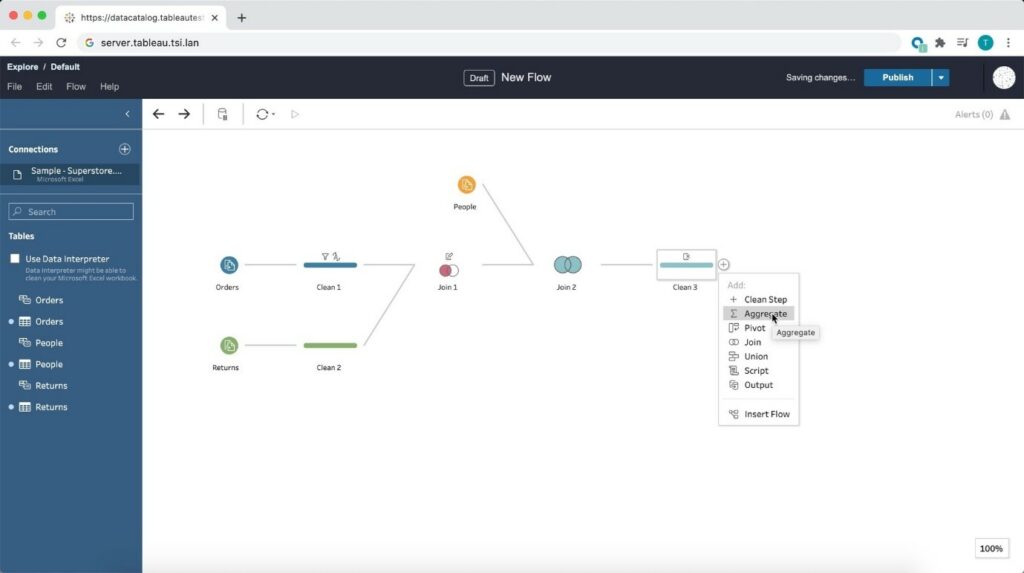
Prepare the data for visualizations from anywhere using a browser! Starting from 2020.4, Tableau is bringing the data prep process into one integrated platform on the web. Now I can easily prepare and manage prep flows from anywhere using a browser.
Tableau Prep
Tableau Prep Builder in the Browser
Prepare the data for visualizations from anywhere using a browser! Starting from 2020.4, Tableau is bringing the data prep process into one integrated platform on the web. Now I can easily prepare and manage prep flows from anywhere using a browser.
 Conclusion
Tableau is progressively evolving as a single platform for data preparations, visualization, and collaboration with every update and version release.
Author : Firdous Maqbool
Images Courtesy : Tableau
Conclusion
Tableau is progressively evolving as a single platform for data preparations, visualization, and collaboration with every update and version release.
Author : Firdous Maqbool
Images Courtesy : Tableau
So, whenever I open the workbook or the extract is refreshed, Tableau displays the unique values within the range specified, giving more control over the parameter values displayed.
Multiple Marks Layer Support for Maps
This is an exceptional feature to bring multiple spatial layers and context together to better understand and analyze geospatial data and map views. I will be able to include multiple marks layers from a data source to map visualizations and enhance the geospatial analysis. I can present more context in a single map view and perform further analysis with this feature.
Block Comments in Calculations
Block comments is a simple yet one of the most useful features for me, which Tableau has announced in 2020.4. I often used to add comments in complex calculations for easy understanding in future references. Earlier, only single-line comments were possible, limiting the description I could add. But from now on, I can add comments of any length to calculation windows with block comments by simply starting the comment with /* and ending with */.
What makes it unique is that the new multi-line block comment feature is consistent with other popular programming languages. This feature is an example of Tableau’s on-going effort to provide its customers with an intuitive user experience.
Tableau Server
Web Authoring Enhancements
Starting from Tableau 2020.4, it is possible to author dashboards from the browser just like how we design it in Tableau Desktop. With this web authoring enhancements, I can include Highlight actions, Format Mark Labels, apply filters to worksheets, create fixed sets, and even create extract in my workbooks from the browser itself. I no longer have to make changes from Tableau Desktop and publish it to the server. I can directly do it from the browser itself.
Offline Map Support for Tableau Server
Rendering dashboards with maps is now faster compared to previous versions. Now, I can create maps using the offline map style in web authoring, ensuring the performance of map views in Tableau Server. Offline map support is a great deal for organizations with strict internet access restrictions, assuring that map view access to all its users.
Tableau Server Management (TSM) Improvements
Tableau Server Administration activities like installation, upgrade and backup are now easy like never before. I can retry installation or upgrade from the last checkpoint in case of an unexpected issue or error during installation or upgrade, saving my efforts to obliterate tableau server.
Backups can be performed twice as fast as previous versions, and I can monitor the progress with the new progress bar giving visibility into what step the backup is on and how much time is remaining.
Backups can also be scheduled using TSM command starting from 2020.4 and that is awesome. I no longer need to prepare batch script and depend on the windows task scheduler to schedule the backups on regular intervals; instead, I can schedule it with just a single command.
Multiple Key Activation on Tableau Server Prior to TSM Initialization
During Tableau Server installation, it is now possible to activate multiple license keys prior to TSM initialization. I will be able to save a lot of time by eliminating the need to restart after the installation is completed to activate multiple licenses and experience a smoother installation.
Analytics Extension for Tableau Online
The power of the Analytics extension is now unlocked in Tableau Online too. The feature was already available in Tableau Server, and it helped us dynamically perform advanced analysis with models and functions in R, Python and other platforms.
Analytics extension in Tableau Online significantly enhances the scope of using Advanced Analytics by the common users.
Merge Duplicate External Assets
Earlier, the Database or Table with similar names used to appear as multiple assets within Tableau Catalog. But, the new feature helps me to merge those multiple assets into a single one. I can manage assets easily and keep an organized view of External assets by merging the common ones.
Tableau Prep
Tableau Prep Builder in the Browser
Prepare the data for visualizations from anywhere using a browser! Starting from 2020.4, Tableau is bringing the data prep process into one integrated platform on the web. Now I can easily prepare and manage prep flows from anywhere using a browser.
Conclusion
Tableau is progressively evolving as a single platform for data preparations, visualization, and collaboration with every update and version release.
Author : Firdous Maqbool
Images Courtesy : Tableau
Tableau 2024.3: Advanced Features Redefining Data Analytics and Collaboration
Tableau Cloud Manager
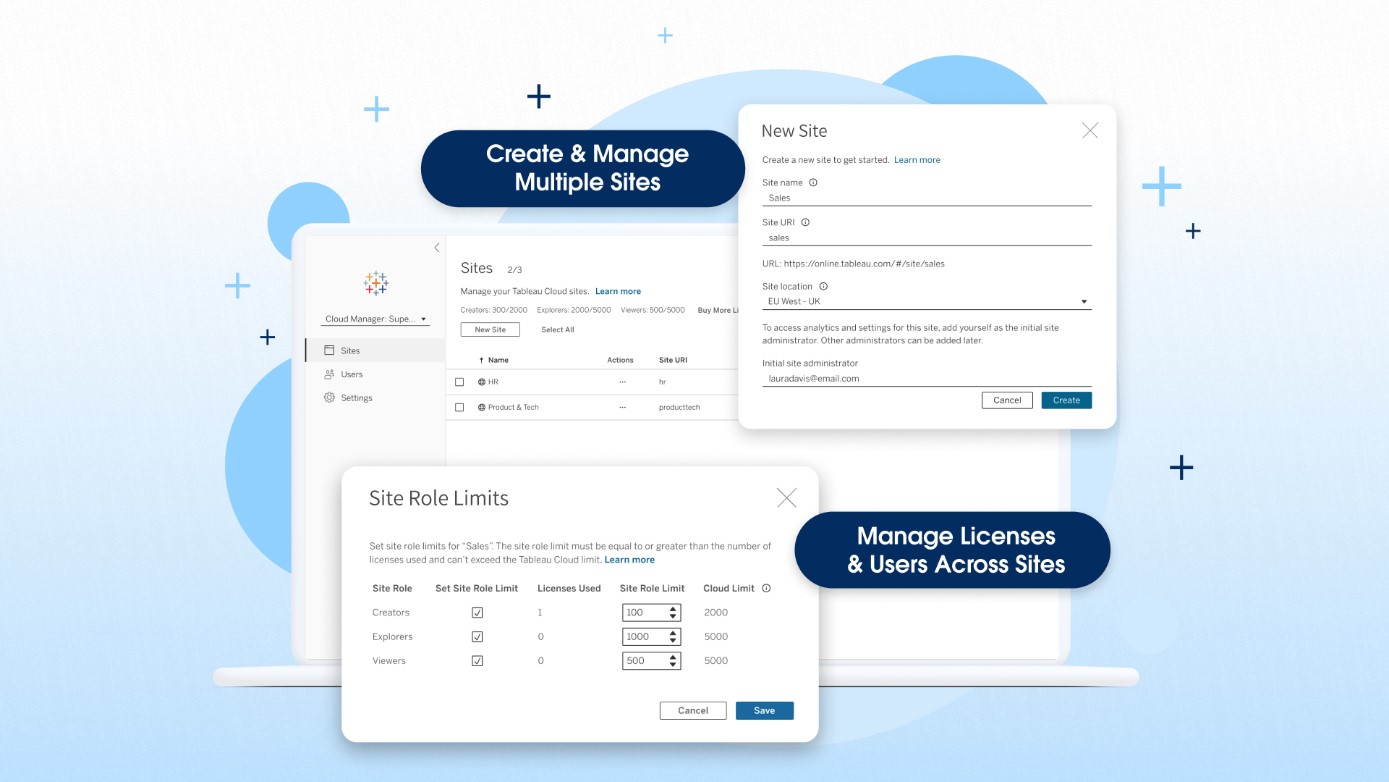
Tableau Cloud Manager is an enhancement to Tableau Cloud that allows customers to create and manage multiple Tableau sites with centralized management of licenses and users. Tableau Cloud Manager simplifies the expansion and administration of your cloud analytics environment, helps ensure you meet governance and data residency requirements and introduces new administrative efficiencies. The highlights of Tableau Cloud Manager are: 1. Expand analytics across your organization with multiple Tableau Cloud sites Tableau Cloud Manager enables Tableau Cloud customers to create and manage multiple sites in a single deployment. Additionally, Tableau Cloud Admins can deploy these sites in the regions of their choice. This functionality is particularly beneficial for global organizations with geographically dispersed teams. By allowing for the establishment of region-specific sites, Tableau Cloud Manager enables tailored analytics experiences that cater to the unique needs and compliance requirements of every team in your organization. Your Tableau Cloud edition determines site limits: • Tableau Cloud (standard): up to 3 sites • Tableau Cloud Enterprise: up to 10 sites • Tableau+: up to 50 sites 2. Effectively manage multi-site deployments Tableau Cloud Manager acts as a layer atop your Tableau Cloud sites, offering centralized management features that help you scale your analytics operations. Customers who deploy multiple sites can manage sites and license users in one place, including granting users access to multiple sites without requiring distinct licenses for each site. 3. Enhance governance with a new Cloud Admin role Tableau Cloud Manager also introduces a new Cloud Admin role, a level above the traditional Site Admin. This allows for more flexibility in how your organization manages and governs your analytics environment based on your unique needs. A smaller organization may employ the same person as a Cloud Admin and a Site Admin. For larger organizations, your Cloud Admin could be someone in IT using higher-level administrative capabilities to implement more control and coordination across your Tableau Cloud sites.
Multiple External Identity Providers on a Site
You can now enable up to 20 identity providers on a single Tableau Cloud site. This feature allows administrators to offer secure access to external users, internal users, and partners. By using multiple identity providers, you can achieve site consolidation and simplify access for both internal and external users throughout the organization.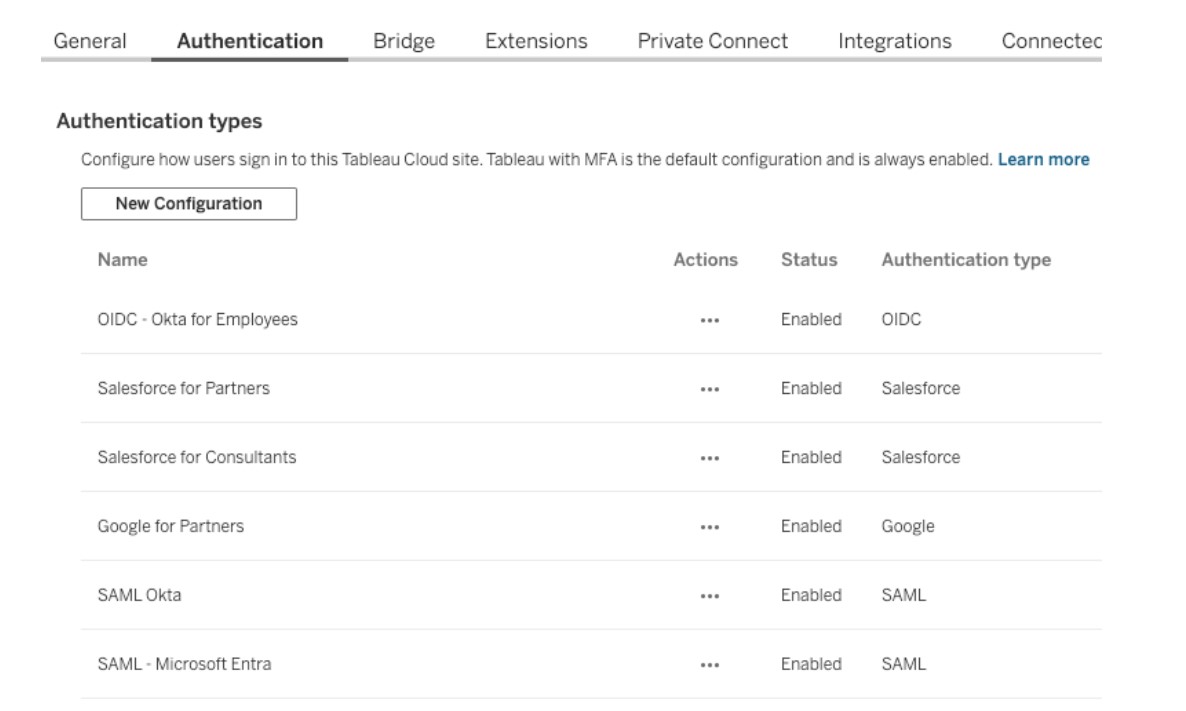
Table Viz Extension
Transform traditional reporting into visual analytics while addressing your users' needs. Tables are essential visualizations for analysts, allowing them to examine data as text and convey detailed information at a granular level. The Table Viz Extension, developed and maintained by Tableau, enables you to incorporate detailed tables and grid views into your dashboards for users who favor traditional reporting formats. You can load this new visualization type into your marks card, configure new columns by dragging fields onto the card, and interact with the table directly for customization.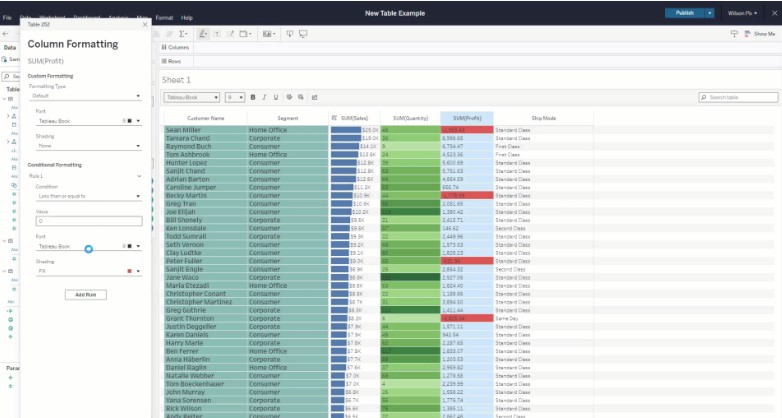
Spatial Parameters
Tableau 2024.3 introduces the full Tableau experience for geospatial data with the support of Spatial Parameters. In addition to the standard parameter types (such as string and integer), authors can now choose a “Spatial” type. These parameters create rich, interactive dashboards that allow you to ask and answer questions about geospatial information. The Spatial type enables the parameter to capture spatial geometries—points, lines, and polygons representing locations, paths, and regions. With Spatial Parameters, end users can select individual points, which are then passed as input into calculations, facilitating dynamic behavior based on their selections. This functionality is similar to existing parameter behavior but is now extended to include spatial objects. Read more about spatial parameters: https://beinex.com/topics/spatial-parameters-enhancing-geospatial-analysis-and-adding-interactivity-to-your-maps/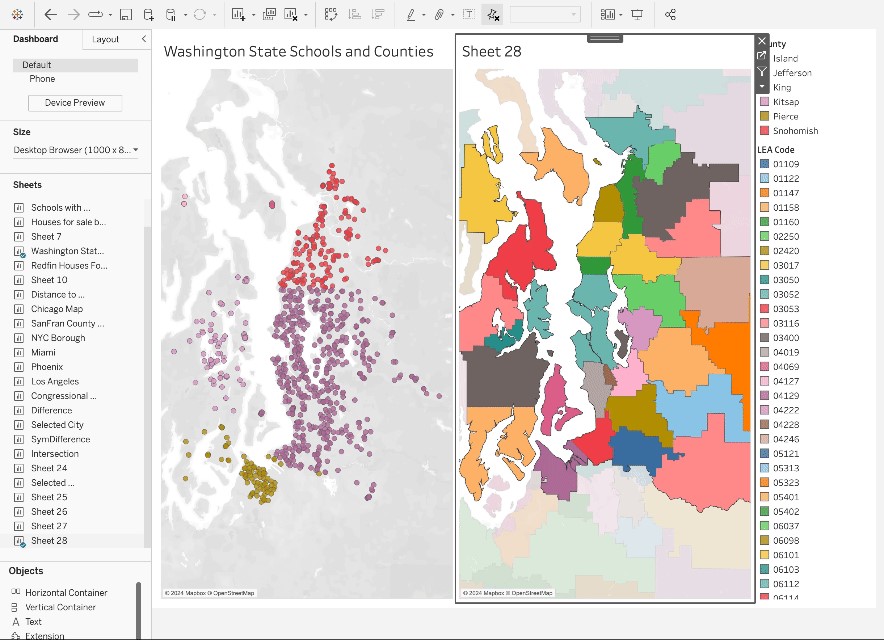
Display Data Model for Published Data Sources
Gain a visual understanding of how tables within your data model are related to Published Data Sources. You can view the relationships between tables and fields in Tableau by simply clicking on the Data Source pane in a Tableau workbook. By enabling analysts to see and comprehend how tables in the data model are interconnected in Published Data Sources, they can confidently create accurate visualizations with a clear understanding of the data model's semantics.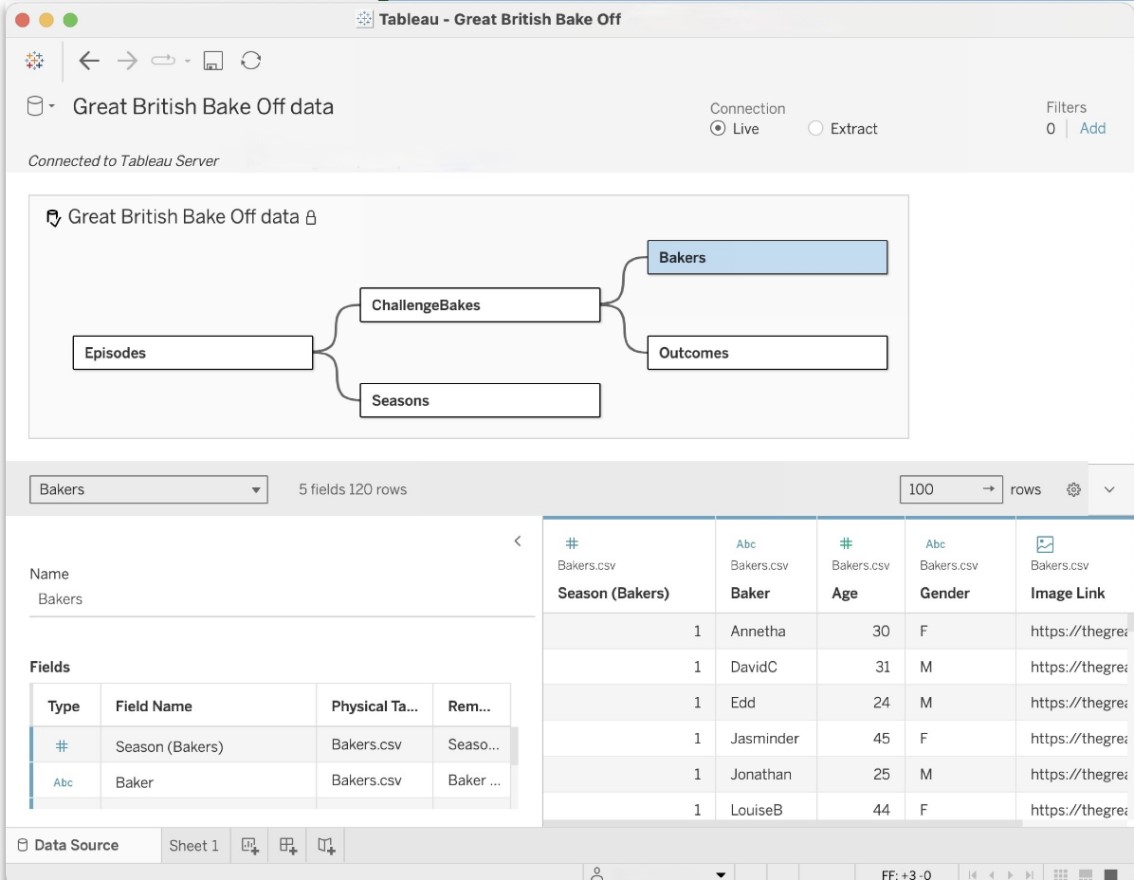
Tableau Cloud App for Microsoft Teams
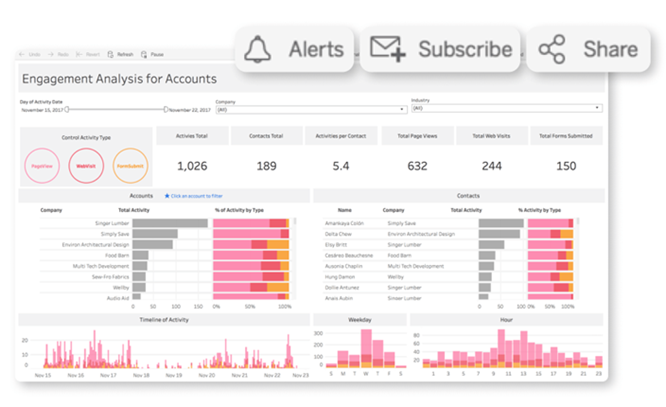
The new Tableau Cloud App for Microsoft Teams allows users to seamlessly integrate data-driven insights into their daily workflows, resulting in faster and more efficient decision-making. This integration enables real-time data sharing, making it easy for users to share their favorite Tableau dashboards and Pulse metrics without leaving Teams—in personal apps, messages, channels, and meetings. From there, they can analyze and share their insights in a message or channel. Pinned channel content is also available to explore in Teams meetings, providing a fully interactive experience. This promotes a more data-driven culture by ensuring everyone can collaborate effectively with access to the same data and analytics.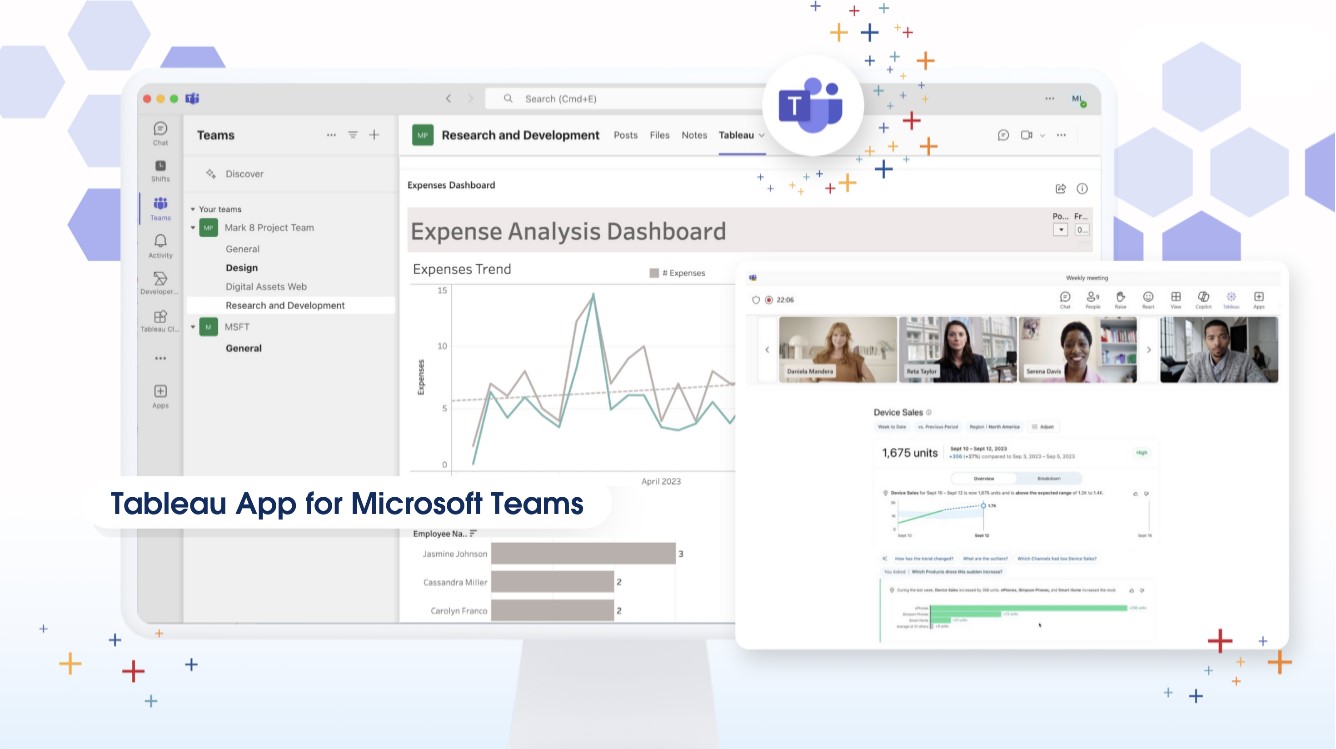 Image source: https://www.tableau.com/products/new-features
How Beinex Can Assist You
Beinex, a premier Tableau partner, offers sustainable analytics solutions to organizations and enhances their internal data visualization capabilities through customized training programs. Our team of Tableau-certified consultants consists of experienced Tableau business users who are passionate about the platform and committed to delivering an exceptional experience. Connect with us to embrace transformation: https://www.beinex.com/free-tableau-software/

Automating Compliance Checks with AWS Systems Manager
The Need for Automating Compliance
As business environments today are rapidly changing and highly regulated, it is important to automate compliance to boost accuracy, efficiency, and scalability. The following aspects emphasize why automating compliance is highly significant. • Amplifies security by complying with data privacy and safety regulations. • Saving time and effort by automating recurring tasks like monitoring, reporting, and audits. • Deploying the required infrastructure faster and in a standardized format. • Boosting accuracy by reducing the risks of human error and consistently adhering to industry standards.
What is an AWS Systems Manager?
A unified management system, an AWS Systems Manager, streamlines infrastructure management by improving visibility and giving you control over your AWS infrastructure. It delivers a suite of tools for managing configurations, automating repetitive tasks, patching systems, maintaining consistent configurations, and securely managing secrets and configurations. The primary features of AWS Systems Manager associated with compliance are: • Compliance Dashboards: They offer a centralized visualization of your compliance status, emphasizing resources that are non-compliant to facilitate faster remediation. • Patch Manager: It automates the deployment and monitoring of patches across your instances. • State Manager: It ensures that your systems are configured to a specific desired state.
Compliance Made Effortless: Automation with AWS Systems Manager
A comprehensive management service, AWS Systems Manager, allows you to automatically accumulate and aggregate data from your AWS resources. It provides a unified view of your AWS environment, making managing and monitoring your resources easier. Compliance, an AWS Systems Manager capability, enables the scanning for inconsistencies in compliance and configuration and offers real-time compliance insights. This capability facilitates drilling down into certain non-compliant resources from the data aggregated from multiple AWS accounts. The additional features and benefits Compliance provides are as follows: • Utilizing AWS Config to see compliance history and monitor changes. • Exporting data to Amazon Athena and Amazon QuickSight to generate organization-wise reports. • Using Amazon EventBridge, State Manager or Run Command to fix issues. • Customizing compliance to develop compliance types to fit your business needs. • Employing AWS Systems Manager for seamless integration of third-party compliance tools and automation of configuration management and vulnerability scanning. AWS Systems Manager facilitates the automation of intricate and recurring tasks associated with configuration, patching, and software installation. It allows businesses to run these tasks across systems simultaneously while minimizing the time needed to effect the changes and ensuring consistency in the process. This execution enables software compliance, including maintaining antivirus definitions up to date, implementing firewall policies, and setting patch baselines. The automation capability of AWS Systems Manager entails streamlining the deployment, maintenance, and remediations of AWS services like Amazon EC2, Amazon S3, and more.