How AI Decision-Making is Improving Enterprise Outcomes
Blog
Share 
Going Further, Together with AI-driven Sentiment Analysis (Infographics)
 29 November 2022
  Sumi S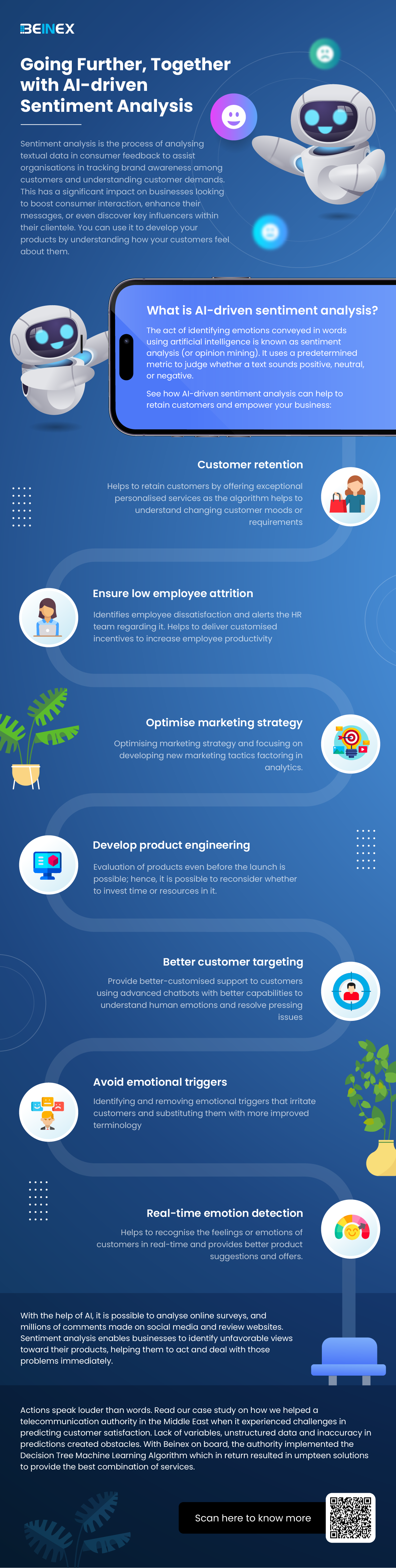
Sentiment analysis is the process of analysing textual data in consumer feedback to assist organisations in tracking brand awareness among customers and understanding customer demands. This has a significant impact on businesses looking to boost consumer interaction, enhance their messages, or even discover key influencers within their clientele. You can use it to develop your products by understanding how your customers feel about them.
Related Articles

Data Ethics: Principles, Characteristics and Regulatory Aspects
The Principles of Data Ethics
And there are five of these principles:
- Ownership: The individual, himself/ herself/ themself, possesses the ownership of the data related to the person. A firm cannot take that data without the consent of the person lest it be deemed stealing.
- Transparency: The individual, aka data subject, has the right to know how a particular enterprise intends to collect, store and utilise the data concerned with the person.
- Privacy: Any bit of Personally Identifiable Information (PII) should not be made publicly available unless otherwise consented to. This includes the name, address, phone number etc.
- Intention: If the firm is collecting data on the individuals to fulfill unstated malicious intentions, it goes against the spirit of ethics.
- Outcome: If the collected data, despite the right intentions, come to have an unwanted outcome vis-a-vis the owner of the data, thanks to an algorithmic bias or any other reason, then the data ethics stand violated.
Characteristics of Data Ethics
Largely there are four characteristics that portray data ethics.
- Vouching for and ensuring data security and protecting customer info: When you handle customer data, as an enterprise, you are bound to protect it, prevent breaches, and ensure data never gets compromised. This is easier said than done. IBM India, in a report, outlines that “data breach average cost increased 2.6% from USD 4.24 million in 2021 to USD 4.35 million in 2022.”
- Offering clear benefits: It is a kind of social contract clause. You give your consumers greater speed, convenience, value and savings, and they (users, patients, clients, employees, customers and partners) will not be hesitant to part with their data as long as they are guaranteed and followed on the guarantee of data in safe hands not prone to misuse.
- Provision for consumer agency: Look at this scenario from a McKinsey report: “If a customer receives an offer and says, ‘I think I got this because of how you’re using my data, and that makes me uncomfortable. I don’t think I ever agreed to this,’ another company might say, ‘On page 41, down in the footnote in the four-point font, you did actually agree to this.’ Here, the customer has no agency. Worse than that, he feels he has been duped by the company. Game over! Remember, your reputation as an enterprise and the trust that you painstakingly cultivated over the years with customers can vanish in as much time as it takes for the customer to hit the post button on social media.
- Doing what you promise: The company should do what it has promised it will do or risk credibility and reputation.
In short, companies that adhere to the principles of fairness, privacy, transparency, and accountability in data matters can earn and retain the trust of their customers or clients. Trust is one power of attorney. It empowers a firm to not only ensure better customer service and experience by exercising the power of data it has been granted but also preserve and enhance its reputation.
Regulations and Data Ethics
Regulatory requirements and ethical obligations are mutually related and complementing. The European Union’s General Data Protection Regulation (GDPR) went into effect (only) in May 2018. But the Internet and data collection using the Internet predate it. Does it mean that companies could have done whatever they wanted to do with data prior to GDPR? Negative.
Ethics is your enterprise’s shadow. It is born with it as its twin. Regulation or law is the caretaker that comes afterwards.
“The bar here is not regulation. The bar here is setting an expectation with consumers and then meeting that expectation—and doing it in a way that’s additive to your brand,” an expert noted.
No wonder you are obliged to build company-specific data usage rules rather than await the regulators and legislators to chip in with guidelines and laws which could be too late or sometimes too little. Ascertain what are the no-go areas; areas where you cannot take the data to.
Once it is done, it is important that you communicate the data values internally and externally so that everyone is on the same page. You also need to set up an agency (e.g. Data Ethics Board) and institutionalise and propagate the values that you designed. C-suite should also be made a part of this ethics board or should be kept posted on the developments in the board.
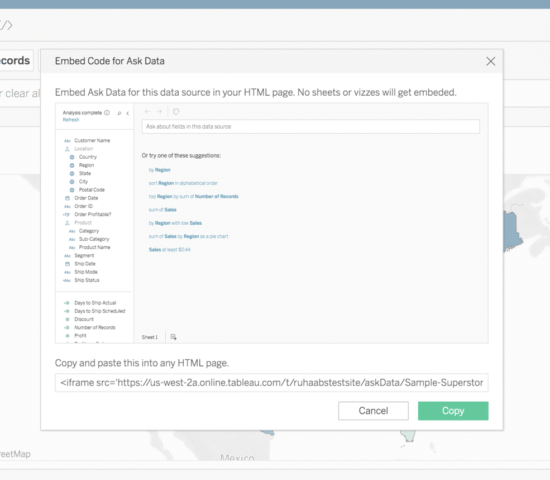
TABLEAU IS UPGRADED TO 2021.3: LET CELEBRATIONS CONTINUE FROM THE LAST QUARTER
When the sliver of thought -- that we have seen all that Tableau can do -- crosses our mind, just pay witness to a meteor shower of new features lighting the horizon up! Tableau is officially upgraded to 2021.3.
Tableau 2021.2 was a remarkable update in itself: it included ‘ask and explain data’ for viewers, allowing connected desktops, Collections, and many more valuable options and features.
So, what does the latest upgrade feature? In one go, the following list encapsulates the whole gamut of supplements:


- Improvements to Data Prep Experience
- Linked tasks
- Generate rows
- Improvements to Tableau Catalog
- Data quality warnings in subscription emails
- Inherited descriptions in web authoring
- Slack Integration
- Additional Features
- Customise the set of workbooks on the homepage
- Rename published data sources directly in Tableau Online or Server
- Authors of a flow can get alerted automatically provided any of the jobs fail and can set up an appropriate warning on the data for consumers well in advance.
- Any flow can be scheduled by customers, or they can extract refresh to run when new data arrives, saving them time and resources.
(Image 1: Linked Tasks on Tableau Prep)
Besides, Tableau Prep Conductor can generate a set of rows that are otherwise missing based on dates, date times, or integers. This is of huge importance as it allows users to fill gaps in data quite easily to ultimately ensure that processes downstream have all the requisite datasets to work on and create highly accurate and precise visualisations. Please see Image 2 for a quick understanding of the feature:
(Image 2: Generate rows on Tableau Prep)
Improvements to Tableau Catalog Next in the line comes improvements to Tableau Catalog. Two features need special mentioning:- Data quality warnings in subscription emails, and
- Inherited descriptions in web authoring
- Shared content
- Data-driven alerts
- @mention
(Image no.3)
Add to this the ability to rename published data sources directly in Tableau Online or Server on the data source page; the upgrade is a real treat to data rockstars. (See image no. 4) Practitioners point out that The REST API can also be used when changing a large number of workbooks to minimise efforts.
(Image no.4)
No need to generate a newly published data source to change the name. No need to manually change all workbooks on the Desktop to use that newly published data source, which was highly frustrating! So, welcome to Tableau 2021.3. Let us uncomplicate and perpetually so! Co-Author : Rakesh Neelakandan
Stay Many Steps Ahead: Reap the Top Five Benefits of Competitive Intelligence
Understanding the initiatives of your competitors offers you the edge to keep advancing and differentiating your business. Your company can gather information and keep track of competitors with the help of competitive intelligence. This knowledge can be a helpful planning tool for making future company decisions on your own.
Competitive Intelligence (CI) is a vital component of every corporate strategy. It entails gathering and analysing data regarding a company's market, including that information's competitive environment, competitors' offerings, target markets, and business strategies.
Making sound decisions with the information you have acquired is the key to effective competitive Intelligence research; gathering the information is just one small aspect of the process.
A thorough examination of the competitive environment in your industry is the foundation of effective CI. You can acquire a comprehensive overview of competitor data by using your internal team of CI and industry experts or your sales team to assist you with conducting essential market research.
Who Uses Competitive Intelligence and in What Sectors?
Many industries use competitive intelligence to inform advancements in operations, technology, customer satisfaction scores, market entry or market defence strategies, and more. The following list of sectors contains six.
1.Technology
The technological sector appears to advance at megabit rates. Consumer expectations modifications frequently coincide with changes in broader technical access and affordances, and many companies are competing to offer the most cutting-edge consumer and business technology products. CI improves new or relaunched times-to-market, warranty and customer service operations, user experience (UX), employee recruitment and retention and sustainable organisational structures in the technology sector.
2.Medical care
Significant government rules are navigated by those working in the healthcare sector as the insurance market, market participants, and patients as consumers. Competitive intelligence can help the healthcare sector in pricing analysis, supply chain management and vendor or third-party administrator relations.
3.Biotechnology and prescription drugs
Pharmaceutical and biotechnology businesses operate in a high-cost, multifaceted market with a complex regulatory environment, like the healthcare sector. For individuals working in the life sciences, medical device, pharma, and medical specialisation industries, competitive monitoring and integrative analytics reduce operational risks by improving salesforce operations and structures, drug approvals and drug launch planning, market entry and gains strategies, consumer awareness campaigns surrounding treatments, therapies, and prescriptions
4.Industrial and Manufacturing Sectors
The 21st century has seen a significant revolution in commercial and industrial manufacturing. The manufacturing industry's environment has been permanently changed by scaled-up international rivalry, new automated technology, and evolving supply and demand patterns. Manufacturers regain control thanks to competitive intelligence, which enables them to maximise their advantages today while reducing market risks tomorrow. Competitive Intelligence assists in Supply chain management, Distribution strategies, Supplier and vendor relations, and go-to-market models
5.Consumer Goods
The consumer goods and retail sector include enterprises of every size and speciality, offering anything from domestic furnishings to personal hygiene items, online clothes stores to sparkling flavoured water. CI consulting explores prospects for retailers to improve brand reputation, consumer activity assessments and profiles, emerging and disruptive technology preparedness and local and global market entry.
6.Financial Services
Consumer opinions in the financial sector depend heavily on external factors like trust and openness. Internally, operations compromise the requirement for compliance and how disruptive technology alters traditional banking, lending, investing, and financial advice. Key capabilities enhanced by financial service CI include profitability and cost analysis, brand reputation, brand and service evolution, customer support channels, market risk modules and new entry market profiles.
Top Five Benefits of Competitive Intelligence
1. Recognise the next steps of the opposition
By participating in CI and performing competitive analysis, you may monitor potential future opportunities and threats for your industry. You will have an advantage if you can predict what your competitors will do next. This will allow you to adopt tactics before they do or turn things around to make yourself stand out from the crowd.
Perhaps the lack of data privacy in your industry is drawing criticism. Using CI, you can predict what your competitors would do in response and decide whether to join them or take a different stance to make a point.
2. Maintain a competitive edge
Researching competitive intelligence may take some time, but you'll gain by always being one step ahead of the competition. In an ever-evolving industry, you must appeal to customers and their desires if you want to flourish. Use CI to identify which rivals in your sector aren't taking needs or trends into account and take the initiative to do so in your own business.
3. Key to strategic judgement
Data is the foundation of a successful competitive intelligence strategy; thus, it makes sense that this would result in more strategic decision-making. You'll discover that to be successful in your CI journey; you must back up your decisions with data.
Competitive intelligence explains the value of objective data and will assist you in making better judgments grounded rather than mere speculation. It is your responsibility to fix any gaps in your market identified by the data you gathered during CI and to put new business practices into place.
4. Internal Information Gathering
While obtaining information on competitors emphasises competitive intelligence, the organisation may also collect your company's data. This internal evaluation gives you a sense of how your business is doing, where you are excelling, and where you need to put more effort into it. You can make decisions using the regular information a competitive intelligence organisation might supply about your business. This is especially helpful if the company is vast and has numerous departments that must be controlled. It helps your business boost products and service speed to market.
5. Boost Product and Service Speeds-to-Market
The term "speed-to-market" describes how quickly a good or service is developed and made available for purchase by the public.
Average speed-to-market timeframes will differ depending on the industry, as will the elements involved in developing, testing, and releasing a new commercial product. It is increasingly crucial for a company in that sector to increase its speed-to-market deliverables without compromising quality as the ecosystem for a product or service becomes more competitive. CI research with a market focus improves time-to-market, market-entry, and market defence skills.
The business world today is among the most competitive it has ever been. To survive in the information age, you need to have competitive intelligence. Although businesses have long informally gathered intelligence on their rivals to get an advantage, the combination of technology with the field of competitive intelligence has made it 10x more successful than ever.
Beinex
By providing insights gleaned from relevant web sources, AI-powered markets and competitive intelligence tools can give you a comprehensive view of your market and competitive landscape. The insights from each source provide a perspective you may use to gain a competitive advantage.
Role of Beinex
We are pioneers in providing 100% population-based strategic decision-making solutions with unique capabilities in extensive data harvesting. Beinex offers highly interactive competitive intelligence solutions for agile and data-driven enterprises of all sizes and categories. From Big data harvesting to enterprise reporting and mobile competitive intelligence solutions, we offer a suite of end-to-end big data CI solutions. These enable intelligent business moves and improved operational efficiency resulting in increased profit and happier customers.

Beinex Makes to the League of Top Consulting Firms for Cloud Services in the Middle East 2024
Our Top Cloud Engineering Services Include:
• Cloud Consulting • Cloud Security • Cloud Migration & Modernization and more Feel Free to Schedule a Call: https://beinex.com/cloud-engineering
Read More
Beinex Among Top BI Consulting Firms in the Middle East Beinex Ranked as Top Data Science Consulting Firms in the Middle EastAbout Beinex Cloud Services
By partnering with Beinex, a leading cloud engineering and enablement partner in the Middle East, you can leverage our expertise to optimize your cloud infrastructure, enhance performance, and ensure security and compliance. Our technical prowess allows us to design and implement tailored cloud solutions that align with your business needs, enabling you to maximize the benefits of cloud technology and drive innovation.
Partnering with industry-leading cloud technology providers like Google Cloud Platform, AWS, and Microsoft Azure to build scalable, secure, cost-effective solutions and deliver transformative cloud technology solutions. Beinex has also forged strong partnerships with Snowflake, Tableau, Alteryx, Alation, and Databricks. These collaborations enable us to offer comprehensive solutions that leverage the best-in-class capabilities of these platforms. We can provide our clients with cutting-edge technologies and expert guidance by working closely with our partners.
About Consultancy-me
Consultancy-me.com is a premier platform for those seeking to remain informed about the advisory and consulting industry. The website provides a comprehensive array of the latest news and trends across more than 60 industries and functional areas within the consultancy sector. Consultancy-me.com collaborates globally with over 150 prominent consulting firms and organizations.

Spatial Parameters: Enhancing Geospatial Analysis and Adding Interactivity to Your Maps
What Are Spatial Parameters?
Spatial parameters in Tableau allow you to dynamically interact with geospatial data within your visualizations. These parameters enable you to select spatial objects like points, polygons, multi-polygons, lines, or collections for calculations. Unlike traditional parameters, which work with values like text or numbers, spatial parameters offer the flexibility to work with geospatial data like coordinates and spatial shapes. You can create spatial parameters in two ways: 1. From a data source: If your data contains spatial fields (like latitude and longitude), you can load these as spatial parameters. 2. Using Well-Known Text (WKT) : This method allows you to manually input spatial data in text format to create custom spatial parameters. Spatial parameters can be used in the same way as other parameters in Tableau, including parameter controls, actions, and dynamic values. Note: Spatial parameters can only be created from spatial data fields (such as latitude and longitude). Creating spatial parameters from text string fields, like a "Country" field, is not feasible as it might be assigned as a geographic role but remains a text field.
Top Benefits of Using Spatial Parameters
Spatial parameters have offered immense possibilities for Tableau experts to analyze and visualize geospatial data. Key benefits are listed below: 1. Cross-Data Source Spatial Exploration With spatial parameters, you can explore spatial relationships between data sources that don't support joins. Unlike traditional data sources, which can be limited by join constraints, spatial parameters allow you to compare spatial regions from different datasets. This means you can dynamically analyze relationships across multiple data sources without the need for complex joins. 2. Skip Long Joins Previously, working with large spatial datasets required time-consuming spatial joins. Now, spatial parameters enable you to bypass these long joins and conduct spatial analysis much faster. You can use parameters to compare regions across multiple data sources instantly, even with vast datasets. 3. Interactive and Dynamic Analysis Spatial parameters allow users to visually interact with geospatial data in real time. Like other parameter types, you can use parameter controls to input points, lines, or polygons and adjust your analysis on the fly. This flexibility allows you to dynamically change spatial boundaries and relationships during your analysis. 4. Distance-Based Queries With spatial parameters, you can perform distance-based queries without complex calculations. For example, you can control the size of a buffer and see what lies within that buffer directly from the worksheet. This makes it easy to conduct proximity analysis without the need for complicated formulas. 5. Create Custom Regions Spatial parameters allow you to create custom regions by selecting points, lines, and polygons and combining them into a single parameter. For instance, you can create a sales region by combining multiple states into one spatial parameter. This enables you to tailor regions for specific analysis scenarios.
Spatial Calculations in Tableau 2024.3: What’s New
Tableau 2024.3 also introduces three new spatial calculations to help you evaluate spatial relationships: • SYMDIFFERENCE: Identifies areas that are unique between two regions. • INTERSECTION: Shows the overlap or intersection between two regions. • DIFFERENCE: Displays areas present in one region but not in the other. These new spatial calculations provide powerful tools to analyze and compare geospatial data.
Union Aggregation for Spatial Data
In previous versions of Tableau, the only aggregation available for spatial data was Collect, which groups spatial elements together. Union Aggregation has been introduced in Tableau 2024.3, allowing you to dissolve the boundaries between regions and providing even greater flexibility in working with spatial data.
Validating Spatial Calculations
Tableau 2024.2 introduced the Validate Calculation feature, which can help you detect and correct errors in your spatial data. This tool is handy when working with complex spatial datasets. Tableau's new Spatial Parameters and related features, such as spatial calculations and union aggregation, provide powerful capabilities for geospatial analysis. Whether comparing spatial regions, performing proximity-based queries, or creating custom areas, these features enable dynamic and flexible analysis beyond traditional methods.
How Beinex Can Assist You
Beinex, a premier Tableau partner, provides sustainable analytics solutions to organizations and helps to build superior data visual analytics capabilities internally through our bespoke training programs. Our team of Tableau-certified consultants are real-life Tableau business users passionate about Tableau and delivering a world-class experience. Connect with us for a free demo: https://www.beinex.com/free-tableau-software/