How AI Decision-Making is Improving Enterprise Outcomes
Blog
Share 
ALTERYX RELEASES 2018.3
 23 September 2019
  Team Beinex
 Visualytics at every step
The Interactive Chart tool replaces the existing Charting tool, which has been deprecated. Now, the interactive charting tool instantly creates and customizes popular chart types and output in both static and interactive formats.
The Insight Tool brings your insights to life through interactive dashboards you can share across your organization via the Alteryx Gallery to gain deeper insights into your data. You can create and arrange multiple charts and text elements on the dashboard, create filters for viewing specific data, and create drilldowns to let you change the detail level of data displayed.
Deliver answers faster
Caching feature in Alteryx Designer allows for a workflow process to be stopped and then restarted from the caching point without starting over which can drastically reduce processing time.
Alteryx Server becomes more enterprise-friendly with job prioritization and worker node assignment that enables admins and users to prioritize the most critical jobs to the top of the queue.
Alteryx Connect gets smarter by recommending related assets to help you discover other available analytic assets to use in your analysis.
Next level analytics
The new Python tool with Jupyter Notebook integration is an embedded IDE that allows you to run Python code directly in Alteryx Designer.
Adding the big data capabilities – Apache Spark Code tool support – Spark Direct for Databricks on Azure and HDInsight – which allows you to quickly leverage the power of Spark right within a workflow.
We encourage you to experience the new capabilities in Alteryx Analytic 2018.3 during our live webinar on September 18th
Alteryx is committed to finding the best solutions and generating the insights. Last year, Alteryx took the first step to interactive behavior by introducing the data profiling feature, this version provides interactive visualizations across the Alteryx platform.
Related Articles

Master Data Visualization with Tableau Public: A Guide to Success
Tableau Public Login
1. Sign Up for an Account Head over to Tableau Public and create a free account. After signing in, you’ll have access to your profile hub, where you can manage and create new visualizations, also known as vizzes in the Tableau Community. 2. Create a Visualization Click on “Create a Viz” from your profile hub, and you’ll be taken to Tableau’s interface, where you can connect to data sources, build your visualizations, and customize them as needed. 3. Publish Your Work Once your visualization is ready, click “Publish As” to share it. This step ensures that your work is stored in the Tableau Public free data visualization software, making it accessible to a global audience.
How to Download Tableau Public: Free & User-friendly
If you’re eager to start, Tableau Public download is free. Here’s how to get started: • Visit the official Tableau Public download page. • Click on the “Download” button to get the latest version. • Install the software and sign in using your Tableau Public login credentials. • Start exploring data visualization with Tableau Public free download. With Tableau Public tutorial resources available online, you can quickly learn how to leverage its features for impactful storytelling.Master Data Visualization: Best Practices for Creating Visualizations on Tableau Public
1. Craft Clear and Informative Titles A well-thought-out title is crucial for any visualization. It should succinctly describe the content while giving viewers a clear understanding of what to expect. A good title helps set the context for your data story. 2. Choose the Right Visual Encodings The effectiveness of your visualization relies heavily on selecting appropriate chart types and encodings. Whether it’s position, length, or color, choosing the right visual elements ensures that your data is represented accurately and clearly. 3. Ensure Effective Labeling Labels make your visualization easier to interpret. Be sure to label axes clearly and add data labels where necessary, so your audience doesn’t need to guess or spend extra time understanding the data. 4. Select the Most Suitable Chart Types Not all charts are created equal—each has its strengths for different types of data. Bar charts are ideal for category comparisons, while scatter plots are great for showing relationships between variables. Picking the right chart type is crucial for delivering your message effectively. 5. Use Reader-Friendly Formatting Well-formatted visualizations are more likely to resonate with viewers. Use appropriate font sizes, colors, and layout elements to ensure that your visualization is not only aesthetically pleasing but also easy to read and comprehend. 6. Incorporate Filters and Parameters Tableau Public’s interactive features, such as filters and parameters, allow users to engage more deeply with your visualization by customizing their view. Thoughtful use of these tools can enhance the user experience. 7. Limit Annotations Annotations can add helpful context or clarification, but they should be used sparingly to avoid overcrowding your visualization. Only include annotations when they provide meaningful insights or explanations. 8. Utilize Tableau’s Built-in Formatting Tools Tableau Public provides a variety of formatting options that help polish your visualizations. Take advantage of these tools to make your work look professional and visually appealing. 9. Share Your Visualizations Publicly Once you’ve completed your work, sharing it on Tableau Public allows you to contribute to the larger data community. You can also embed your visualizations on websites or blogs, helping you build your personal portfolio.
Building a Strong Tableau Public Portfolio
To stand out in the Tableau Public community, it’s important to curate a portfolio that reflects your skills and versatility. Here are a few tips: 1. Highlight Your Best Work Showcase the visualizations that demonstrate your strongest skills and align with your career interests. These projects should reflect the kind of work you excel at and wish to pursue. 2. Maintain a Clean, Organized Layout A well-organized portfolio enhances the viewing experience. Ensure that your visualizations are easy to navigate, and avoid cluttered or confusing layouts. 3. Use High-Quality Visuals Always use high-resolution images or graphics when showcasing your work. Poor-quality visuals can give a negative impression and may not reflect your actual abilities. 4. Provide Clear Descriptions Accompany your visualizations with concise descriptions. Explain the purpose of each project, the data source, the analytical methods used, and any challenges you encountered. 5. Show a Variety of Work Include a diverse range of projects in your portfolio to highlight your versatility. This demonstrates your ability to adapt to different data sets and visualization types. 6. Keep Your Portfolio Updated Regularly update your portfolio with your latest work to show your ongoing development and progress in data visualization. 7. Seek Constructive Feedback Asking for feedback from peers or mentors can help you identify areas for improvement and refine your portfolio for better presentation. 8. Engage with the Tableau Community Tableau Public isn’t just a tool—it's a thriving community. Engage with other users by liking, commenting, and participating in forums and challenges. It’s a great way to learn, share, and grow alongside other data enthusiasts.
Conclusion
Tableau Public is a powerful platform that offers more than just free data visualization tools, it’s a gateway to learning, growth, and professional opportunities. By following these best practices, you can create compelling and impactful visualizations while engaging with a vibrant community of data professionals. Whether you’re looking to advance your career or simply improve your data skills, Tableau Public provides the perfect platform to explore, create, and share. Connect with us a for a free demo: https://beinex.com/free-tableau-software/

Artificial Intelligence Governance: Why Enterprises Must Move Beyond Reactive Compliance
Enterprise AI adoption has crossed a tipping point. From automating customer service and accelerating drug discovery to supply chain optimization, artificial intelligence is no longer experimental; it is operational. Yet as AI becomes deeply embedded across enterprise functions, many organizations remain underprepared for the governance challenges that accompany it.
Artificial intelligence governance has evolved into a strategic boardroom priority rather than a simple compliance obligation. However, many enterprises still rely on a reactive approach: waiting for regulations to emerge and then rushing to comply. While that strategy may have worked for traditional data privacy requirements, it is insufficient for AI. With 13% of organizations already reporting breaches involving AI applications or models, reactive governance can expose organizations to operational disruption, reputational damage, and financial risk.
Know More: AI Governance & Ethics

Top 15 Tableau LOD Expressions
Customer Order Frequency
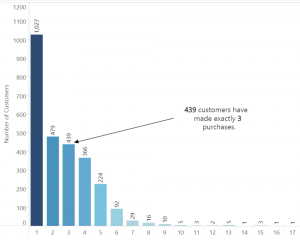
This scenario involves understanding customer order frequency, specifically determining the count of customers who made varying numbers of orders. While calculating the number of orders per customer is straightforward, discerning how many customers placed one, two, or multiple orders requires breaking down the count of customers based on order frequency. Utilizing LOD (Level of Detail) Expressions becomes essential in transforming the count of orders into a dimension that segregates customers by their order count. This process aids in unraveling insights about customer behavior in relation to their order frequency within a sales database where multiple items are present per order.

Cohort Analysis
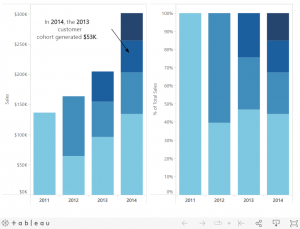
In the pursuit of understanding the impact of customer tenure on sales contributions, cohort analysis is employed to assess whether longer-tenured customers hold more significant sales influence. The presented view categorizes customers based on the year of their initial purchase, facilitating an annual comparison of sales contributions among these cohorts. To determine the first purchase date for each customer, the minimum order date per customer is crucial. However, as the displayed data isn’t structured by customer, employing an LOD (Level of Detail) Expression becomes necessary to establish and retain the minimum order date per individual customer for accurate cohort analysis.

Daily profit KPI
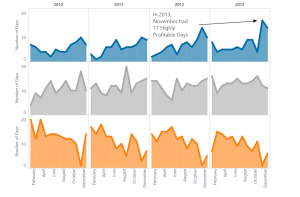
In evaluating daily profit as a key performance indicator (KPI), the focus shifts from observing profit trends over time to quantifying success based on total profit per business day. Understanding the count of profitable days per month or year becomes essential, particularly in investigating potential seasonal impacts. Utilizing LOD (Level of Detail) Expressions, this view demonstrates the seamless creation of bins for aggregated data, like profit per day, despite the underlying data being recorded at a transactional level. This approach allows for efficient analysis and visualization of daily profitability trends within the context of the broader business calendar.

Percent of Total
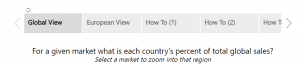
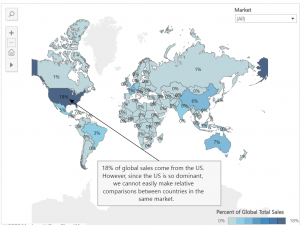
Determining each country's revenue contribution to global sales is crucial for assessing market performance. When visualized by coloring contributions as percentages, it's apparent that the US holds the highest share of global sales revenue. However, focusing on markets like the EU, which might have a relatively smaller absolute contribution, becomes challenging without LOD Expressions. Without this capability, filtering by market could lead to recalculating the percent of total, displaying each country's contribution relative to its market. Using a straightforward LOD Expression enables filtering by market while preserving the measurement of each country's global contribution, facilitating a more nuanced analysis of market performance within the broader global context.
New customer acquisition
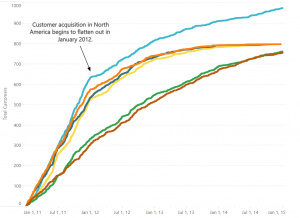
Analyzing the daily trend of total customer acquisition across different markets serves as a crucial metric in assessing the effectiveness of regional marketing and sales efforts in generating new business. By tracking this trend, we gain insights into the performance of these organizations. A steeper line signifies a stronger acquisition trend, while a flattening line suggests a need for increased lead flow.
To accurately measure this trend, it's imperative to ensure that repeat customers aren't erroneously counted as new customers. This necessitates using an LOD (Level of Detail) Expression, allowing data evaluation at the customer level despite its visual representation being segmented by market and day. This meticulous approach ensures a precise assessment of new customer acquisition, enabling strategic actions to be taken based on the observed trends.

Comparative Sales Analysis
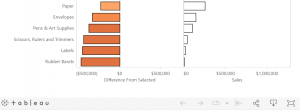
When aiming to determine the difference from a selected category rather than the average, the process becomes more intricate. Initially, isolating the sales figures of the chosen category is necessary. Subsequently, employing an EXCLUDE Expression becomes crucial to reiterate that value across all other categories. This technique enables a straightforward calculation of the difference between each category's sales and the rest, allowing for a comparative sales analysis that emphasizes the disparity between the selected category and others.

Average of top deals by sales rep
Determining the largest deal closed by each sales representative and subsequently computing the average of these top deals by country is a multi-layered analysis. LOD (Level of Detail) Expressions play a pivotal role in dissecting data down to the sales rep level, even when the visualization displays information at the country level.
The presented view showcases the average top deal size by sales rep, offering insights where countries colored blue exhibit higher average top deal sizes, while those colored orange indicate comparatively lower averages. This information serves as a guide for further drill-down analysis from the country level to the sales rep level, facilitating a deeper understanding of performance variations across both geographical and individual sales rep perspectives.


Actual vs. Target
Within this visualization, we present the variance between actual and target profits per state for a chain of coffee houses. The top view distinctly showcases states surpassing or falling short of set targets. Yet, this aggregated view might overlook subtleties: some states exceed targets due to every product sold meeting or exceeding goals, while others rely on a single product surpassing its target to compensate for others missing theirs. Employing an LOD Expression enables the identification of the percentage of products sold within a state that surpass their set targets, offering a more nuanced assessment.


Value on the Last Day of a Period
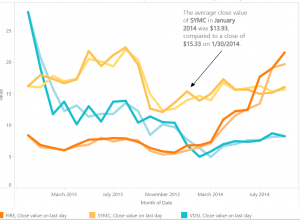
Data reflecting specific day statuses—like inventory, employee headcounts, or daily stock values—require distinct handling compared to aggregatable metrics like sales or profit. Displaying the value on the last calendar day of a month holds significance in such cases. Moreover, transitioning from a monthly to a weekly view should dynamically update to showcase the last day of the week. For instance, in the stock data example below, assessing multiple ticker values at a daily level compares the average daily close value against the close value on the final day of the period. Employing a straightforward LOD Expression enables diving into daily granularity even within a visual display at a higher level of aggregation.

The following 6 examples illustrate how level of detail expressions can be applied to more advanced scenarios:
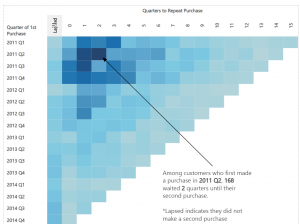
Evaluating the return purchases among customers holds significance, especially considering the costliness of acquiring new customers. Understanding the patterns of customers making repeat purchases within varying quarters—whether it's the first, second, third, or beyond—is essential. Additionally, assessing the count of customers who have never made a repeat purchase contributes valuable insights. This analysis, segmented by quarterly cohorts, sheds light on customer behavior over time.
Leveraging a FIXED Expression becomes instrumental in identifying each customer's first and second purchase dates, enabling the derivation of the time span in quarters for a repeat purchase. This nuanced approach offers a comprehensive understanding of customer return behavior within distinct quarterly cohorts.

Percent Difference from Average Across a Range
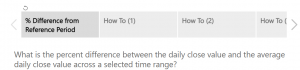
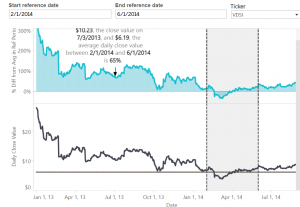
While Example 6 highlights comparing against a single selected item, what if the aim is to assess comparisons across a spectrum of values? Consider a scenario where one desires to evaluate the daily close value of a stock against the average daily close value before a significant industry-impacting event occurs.
In such instances, examining the percent difference becomes essential. By comparing the daily stock close values against the pre-event average, insights into the magnitude and impact of the event on stock performance can be gleaned. This analysis offers a broader perspective, aiding in understanding the deviation from the average within the context of industry-wide fluctuations.
Relative period filtering
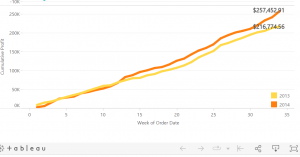
When analyzing performance through year-to-date (YTD) and month-to-date (MTD) comparisons relative to the previous year, filtering relative to today is straightforward. However, when data undergoes weekly refreshes, discrepancies can arise. For instance, if the last refresh was on March 1 but the current day is March 7, a month-to-date comparison might inadvertently compare March 1 through March 7 of the previous year against March 1 of the current year, potentially causing unwarranted concern.
Employing a simple LOD (Level of Detail) Expression resolves this issue by identifying the maximum date within the dataset. This approach ensures accurate time-based comparisons, preventing misleading contrasts between different periods and providing a more precise evaluation of performance trends.

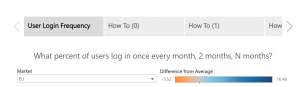
User login frequency
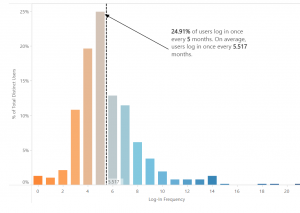
Understanding user login frequency is pivotal for assessing user engagement on websites or applications. This analysis aims to segment users based on their login frequency—whether it's monthly, bi-monthly, quarterly, and so on—and derive insights regarding the average login rate and its distribution around this average.
The dataset's granularity involves a log-in date per user ID, implying a row for each day a user accesses the platform. Slicing the number of customers by their login rate entails a more intricate analysis, necessitating the slicing of one measure by another measure. As showcased in Example 1, leveraging LOD (Level of Detail) Expressions streamlines this analysis, enabling an easy breakdown of user cohorts based on their login frequency and facilitating a comprehensive understanding of user behavior.
Proportional Brushing
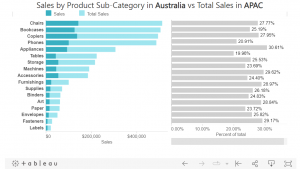
In the realm of analysis, the pivotal question often revolves around comparison—specifically, "Compared to what?" Proportional brushing introduces a valuable technique for filtering where the aim is not merely to narrow down to the selection but to compare the selection against the total context.
This approach allows for a more comprehensive analysis by providing insights into how the selected subset relates to the entirety of the dataset. Proportional brushing aids in understanding the significance and impact of the chosen subset within the broader context, offering a richer perspective for informed decision-making.

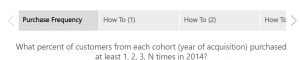
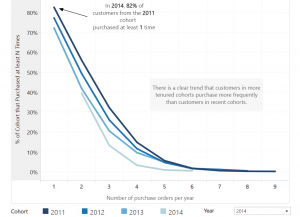
Examining the correlation between customer tenure, measured by the year of acquisition, and loyalty, gauged through annual purchase frequency, provides valuable insights into customer behavior.
While Example 1 illustrates customers purchasing a specific number of times, marketers often seek insights beyond exact counts—particularly identifying customers who purchased at least a certain number of times. Moreover, understanding the loyalty trends within different acquisition cohorts is crucial. Simply assessing absolute customer numbers across cohorts might not reveal nuanced insights. Therefore, a more insightful approach involves evaluating the percentage of total customers within each cohort based on their purchase frequency thresholds.
In essence, this analysis combines variations of the number of orders LOD Expression, cohort Expression, and percent-of-total Expression to determine what percentage of customers within each cohort made at least one, two, three, or more purchases in a year. This approach offers a comprehensive understanding of loyalty trends across different customer acquisition periods.

Data Sharing Best Practices in Snowflake
Snowflake Data Sharing
Data sharing in Snowflake equips you to share specific objects with another Snowflake account or a designated reader account. The beauty of this process lies in the fact that the data isn't duplicated or moved between accounts.
Now, why is this a game-changer for organisations? When constructing data pipelines and developing data products, it's a common practice to shuttle data between databases and diverse systems to blend different datasets.
Consider this scenario: You have transactional data within your online transactional processing (OLTP) database, and you wish to integrate it with external data for a machine learning model. Traditionally, organizations would export data into a data lake, import external data, and then employ tools like Apache Spark for analysis.
But what if, instead, you could simply deposit your data into Snowflake, and the external data source could seamlessly share its data with your organisation, eliminating the need to load it separately? This eradicates the challenge of keeping data copies synchronised, resulting in savings on storage, computing costs, and maintenance efforts.
Imagine your company possesses valuable information that can guide other companies in making informed decisions. For instance, let's say your company can provide precise estimates for product delivery times based on proprietary data, and you want to offer this information for sale to your customers.
Enter Snowflake data sharing—it empowers you to precisely do that.
Case Studies: Snowflake Data Sharing
Citing two instances where leading organisations use Snowflake to improve actionable data sharing, collaboration and reporting capabilities.
1. A Pioneering Technology Leader
A well-known Swedish-Swiss multinational corporation successfully implemented a streamlined data strategy using the Snowflake Data Cloud, adopting an "extract once, use everywhere" approach that simplified data consolidation and enablement. By transitioning from nightly extracts, which caused significant system overhead, to a single, near real-time Change Data Capture (CDC) process, the company achieved efficient replication of information to Snowflake with minimal impact. The utilisation of Snowflake Secure Data Sharing facilitated secure and governed data collaboration across the four business areas.
2. A Leading fast-food Restaurant Chain
Snowflake's data-sharing capabilities have revolutionised decision-making for a fast-food restaurant chain. They can effortlessly share crucial sales, inventory, and operational data with external entities, expanding from three to over 30 parties.
With a high-performance database platform hosting over 2 million transaction records, the restaurant chain has established a robust data management and analysis infrastructure through Snowflake, empowering its operational and marketing endeavours.
Moreover, by consolidating all data onto Snowflake, the organisation has achieved a remarkable 70% reduction in operational IT costs, demonstrating the platform's efficiency and cost-effectiveness.
Centralising and sharing data with Snowflake significantly eased the development of data products for various purposes, including marketing campaign analytics, quotation success metrics, production line tools, and supply chain dashboards. These data products are utilised by thousands of users globally, including internal stakeholders and external vendors, enhancing collaboration and efficiency across the organisation.
What are the best practices for Snowflake data sharing?
Optimize your Snowflake data sharing experience with these essential practices. Ensure data security by utilizing secure views to filter and mask sensitive information. Enhance clarity and understanding by employing descriptive names and comments for your shares. Monitor and fine-tune your sharing activities using Snowflake Information Schema or Account Usage views. Foster communication and collaboration with your consumers to create a seamless workflow.
Take command of your data sharing environment by setting quotas and limits with the ALTER SHARE command. Keep your consumers informed about any changes or updates to your shares, and actively seek feedback to refine your data-sharing strategy. Explore additional data sources through Snowflake Data Exchange or Data Marketplace to enrich your analytics.
These best practices safeguard sensitive data, ensure compliance with data privacy regulations, clarify the purpose of each share, and provide insights into usage and performance, ultimately enhancing your data analysis capabilities. Below are some best practices for data sharing with Snowflake:
- Understand Snowflake Data Sharing Familiarize yourself with Snowflake's data sharing features, such as Secure Data Sharing (SDS) and Sharehouse, to leverage the platform effectively.
- Role-Based Access Control (RBAC) Implement strong RBAC policies to control who can share data and who can access shared data. Define roles and permissions to ensure data security and compliance.
- Secure Data Sharing Use Secure Data Sharing (SDS) to securely share data with external parties without copying or moving the data. Implement encryption and access controls to protect sensitive information.
- Sharehouse Best Practices If using Sharehouse, follow best practices for creating and managing share objects. This includes defining share schemas, tables, and using the appropriate share options for your use case.
- Data Masking and Redaction Apply data masking or redaction policies to shared data to protect sensitive information. Ensure that shared data complies with privacy regulations and internal data governance policies.
- Query Performance Optimization Optimize query performance for shared data by using clustering keys, partitioning, and indexing. This helps enhance the efficiency of queries on large datasets.
- Versioning and Change Tracking Implement versioning and change tracking mechanisms to keep track of updates and changes in shared data. This ensures data lineage and helps with auditing and troubleshooting.
- Documentation and Metadata Maintain comprehensive documentation and metadata for shared datasets. Include information about the source, purpose, and any transformations applied. This helps users understand the shared data context.
- Governance and Monitoring Establish governance practices for data sharing, including regular reviews of shared data objects and access logs. Monitor data-sharing activities to identify any anomalies or potential security issues.
- Educate Users Provide training and documentation for users involved in data-sharing activities. Ensure they understand the best practices, security protocols, and the impact of data sharing on performance.
- Regular Audits and Reviews Conduct regular audits and reviews of shared data objects, permissions, and access controls. This helps maintain data integrity, security, and compliance with organizational policies.
- Cost Monitoring
By adhering to these best practices, you can:
1. Shield Sensitive Data: Employ secure views to fortify sensitive information.
2. Navigate Data Privacy Regulations: Ensure compliance with data privacy regulations by controlling access and usage.
3. Illuminate the Purpose of Each Share: Maintain transparency regarding the intended purpose and content of each shared dataset.
4. Efficiently Monitor Usage and Performance: Keep a finger on the pulse of usage patterns and optimize performance for streamlined data sharing.
5. Elevate Your Data Analysis Journey: Enrich your analytics by exploring diverse data sources and unlocking fresh perspectives.
What’s Next
1. Enhanced Data Collaboration Tools:
Best Way to Share Data for Your Business
For secure collaboration, old ways of copying data are no longer the best. If you're working with trusted partners and it's privacy-compliant, Snowflake Secure Data Sharing is a quick and secure option. But, if you're dealing with sensitive or regulated data, especially when the risk is high, consider using a data clean room for an extra layer of security and compliance.
Beinex + Snowflake Offerings
Beinex’s partnership with Snowflake enables us to offer you advanced features like automated tuning and elastic compute, along with analytics modernisation services, to help your organisation realise exponential Return on Investment.

Beinex Opens its Corporate Office in the Kingdom of Saudi Arabia
In the last few years, the KSA market has witnessed a definitive shift to self-service consumption tools anchored in data democratization. The transition is of paramount importance for products that can scale at an enterprise level, AI-ML products, and those that can address data governance and quality management issues.
The shift is also significant for enterprise transformation catalysts that take an ecosystem approach with proven expertise in developing and executing comprehensive and unified data strategies, data engineering and data governance paradigms.
Thus the time is ripe for an innovation-led, experience-driven enterprise like Beinex to spearhead Digital and Analytics Transformations in KSA.
[sc name="quote" quote="“Beinex is pleased to formalize its presence in the KSA market by opening an Office in Riyadh. We, as an enterprise, are 100% aligned with Vision 2030 as put forth by the KSA and see tremendous value getting unlocked as the vision is realized. We look forward to expanding our footprint in the domains of Artificial Intelligence, Sustainability, Digital Transformation, Analytics and allied areas. The Kingdom envisions itself to be at the forefront of data and artificial intelligence-based economies, and Beinex is committed to playing its part in supporting and fulfilling this vision,”" author="Indumon Das, Founder and Managing Director of Beinex,marking the occasion of the office’s opening, noted."][/sc]
Middle East Banking AI & Analytics Summit
Beinex is super excited to be a part of the 6th Middle East Banking AI & Analytics Summit on May 10, 2023. With the motto, "Accelerating Innovation in Banking with AI and Analytics Strategies", the summit aims to revolutionise the financial and banking space in KSA using AI. We are ready to witness and participate in panel discussions, fireside chats, keynote presentations, roundtable discussions, and conversational Q&A sessions with thought leaders on exploiting the Power of AI and Analytics for a futuristic banking ecosystem.
Middle East Enterprise AI & Analytics Summit
Also, we are enthusiastic to participate in the Middle East Enterprise Al and Analytics Summit on May 11, 2023. Its vision is to curate a world-class platform for tech leaders in the region to connect, communicate and collaborate under the theme "Accelerating Innovation in Enterprises with Applied Al and Analytics Strategies". Beinex is looking forward to connecting with thought leaders and high-level decision-makers in Al, and Data Analytics at #MEEAI 2023 to participate in discussions and to be a part of the transformation journey.The Power of Beinex
Beinex drives a cohesive, unified digital ecosystem to help customers address their needs, assess products and operations, understand market requirements and evaluate overall business performance.
It is a multinational firm exploring the endless possibilities of data for Cloud, Analytics, Artificial Intelligence, Machine Learning, and Automation. In effect, Beinex architects, guides, leads, and implements solutions in Analytics, AI, and ML for the spheres of Digital Transformation, GRC, and Risk & Audit Transformation.
Partnerships make Beinex stronger. The company has solid partnerships with some of the leading technology firms, research labs, and universities around the globe. Businesses can leverage the power of the Beinex partner ecosystem to maximize the value of their end-to-end analytics journey.
Beinex Digital, a part of Beinex Holdings, is a digital transformation entity with a comprehensive suite of independent products focused on addressing specific business gaps, use cases, and needs. It incorporates a spectrum of solutions in the domains of Employee Health, Safety and Environment, Enterprise Product Management and Enterprise Performance Management.
Beinex is also the product champion for Aurex – Augmented Risk and Audit Analytics – a unique single-platform solution for Integrated Risk Management, Governance, Audit, Compliance, BCM, and Analytics functions. It is the first-of-its-kind product that streamlines risk and audit verticals for enterprises worldwide and is a Unified Digital Assurance Ecosystem.
Present in three continents, Beinex enables its clients to analyze data, mitigate risks, identify opportunities and automate processes.
Beinex Office Address (KSA):
Beinex Advanced Information Technology3141, Anas Bin Malik,
8292 Al Malqa Dist
P. O. Box 13521,
Riyadh, Kingdom of Saudi Arabia
Email: Info@beinex.com