How AI Decision-Making is Improving Enterprise Outcomes
Blog
Share 
Advanced Analytics and Emerging Trends(Infographic)
 15 March 2023
  Sumi S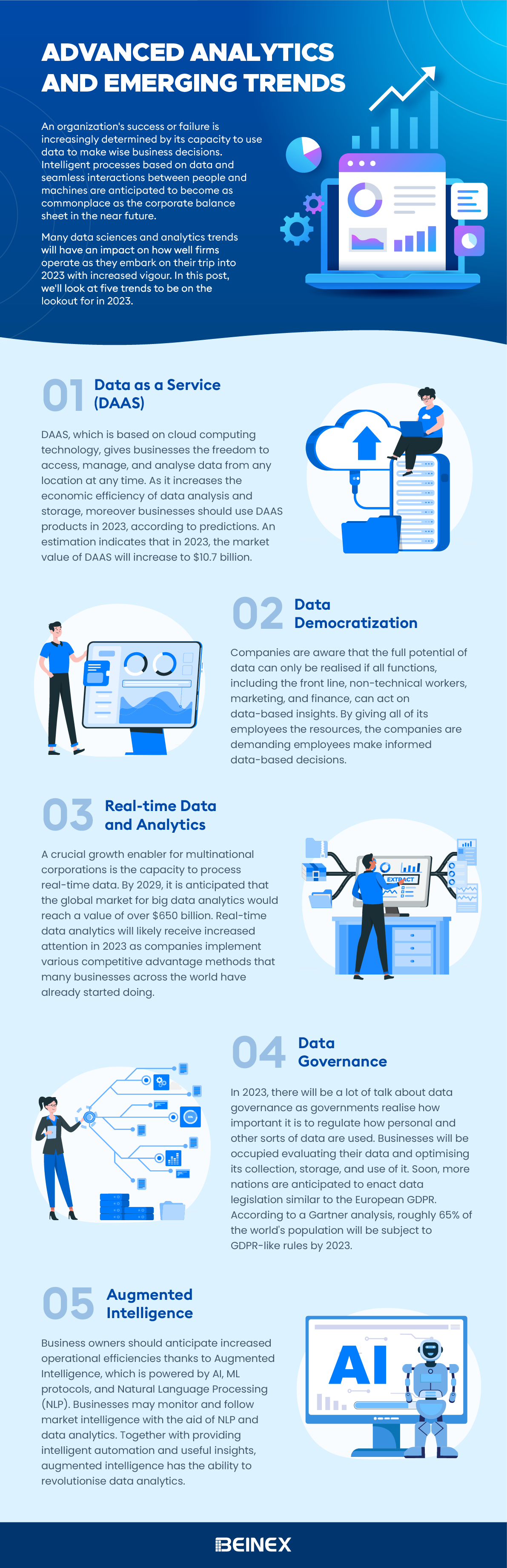
-
Related Articles

How to Automate and Improve Your Data Governance Processes for Better Results
What is Data Governance?
Data governance is the process of managing the availability, usability, integrity, and security of data in an enterprise system. It establishes policies, procedures, and standards for how data is collected, stored, used, and shared. It's about ensuring the right data is available to the right people at the right time, in a secure and compliant manner.Why Automate Data Governance?
Automating data governance processes brings several benefits, including: • Improved Data Quality: Automation can identify and correct data errors, inconsistencies, and duplicates, leading to improved data quality and more reliable insights. • Increased Efficiency: Automation streamlines data governance processes, reducing manual effort, freeing up valuable time, and accelerating decision-making. • Reduced Costs: Automation helps reduce the costs associated with manual data governance processes, minimizing errors and the need for rework. • Enhanced Compliance: Automation helps ensure compliance with data privacy regulations, such as GDPR, CCPA, and HIPAA, minimizing risk and potential penalties. • Better Decision-Making: By improving data quality and accessibility, automation enables better, more data-driven decision-making. • Scalability: Manual processes struggle to keep up with growing data volumes. Automation allows your governance framework to scale effectively.How to Automate Data Governance Processes?
Several approaches exist for automating data governance, and often a combination is most effective: • Data Discovery and Classification: Automated tools, like data catalogs, can help discover and classify data based on its content, sensitivity, and other criteria. This is the foundation for understanding your data landscape. • Data Quality Monitoring: Automated tools can continuously monitor data quality, identify potential issues, and trigger alerts for remediation. • Data Lineage Tracking: Automated tools can track the origin and movement of data, providing a clear audit trail and helping to ensure data quality and compliance. This is crucial for understanding how data is transformed and used. • Data Access Control: Automated tools can enforce data access policies, ensuring that only authorized users can access sensitive data, protecting privacy and security. • Data Masking and Anonymization: Automated tools can mask or anonymize sensitive data to protect privacy while still allowing for data analysis and testing. • Metadata Management: Automated tools can capture and manage metadata, providing context and meaning to data assets, making them easier to find and understand.The Role of Data Catalogs like Alation
Data catalogs play a critical role in automating data governance. They act as a central inventory of all data assets, providing a single source of truth about your data. Modern data catalogs like Alation offer: • Automated Data Discovery and Profiling: Automatically scan and profile data sources to identify and catalog data assets. • Data Lineage: Visually map the journey of data from its origin to its consumption, showing transformations and dependencies. • Data Quality Rules and Monitoring: Define and enforce data quality rules and automatically monitor data for compliance. • Collaboration and Knowledge Sharing: Enable data users to collaborate, share knowledge about data assets, and contribute to data governance efforts. • Search and Discovery: Empower users to easily find the data they need, along with relevant metadata and context.Best Practices for Automating Data Governance
• Develop a Data Governance Strategy: Before automating, define clear goals, objectives, and metrics for your data governance program. • Identify Key Stakeholders: Engage business users, IT, compliance, and other stakeholders to ensure alignment and buy-in. • Choose the Right Tools: Select tools that meet your specific needs and integrate with your existing data infrastructure. Consider a platform approach that can address multiple aspects of governance. • Implement a Phased Approach: Start with a pilot project to demonstrate value and refine your approach before scaling to the entire organization. • Focus on Data Literacy: Train your employees on data governance policies, procedures, and the use of automated tools. • Monitor and Evaluate: Continuously monitor the effectiveness of your automated data governance processes and make adjustments as needed.How to Embrace Better Data Governance?
Data governance doesn’t have to be a bottleneck. Organizations can reduce manual workloads, improve compliance, and drive innovation by adopting automation and leveraging tools like data catalogs. Ready to transform your data governance strategy? Get a Free Assessment Now!
How AI Decision-Making is Improving Enterprise Outcomes
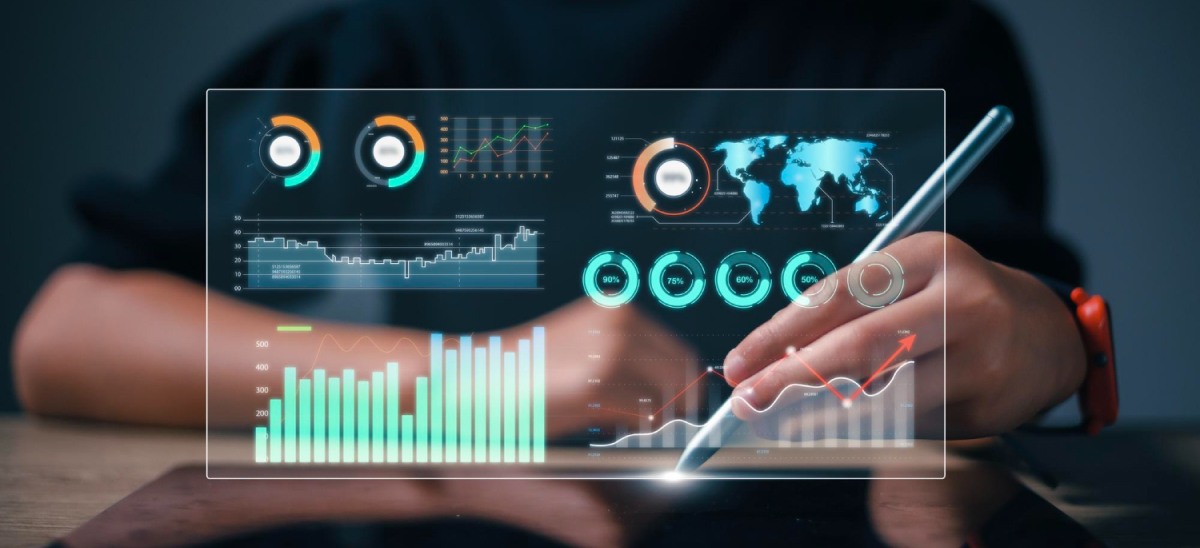
Enterprises today don’t suffer from a lack of data; instead, they’re overwhelmed by it. The real challenge before organizations is turning that data into well-timed decisions. This is where AI decision-making comes in. Enterprises are increasingly relying on AI-driven decision intelligence to guide strategy, enhance operations, and achieve better business outcomes. Let’s see how it drastically changes how modern businesses operate.
According to McKinsey & Company, 88% of organizations now use AI in at least one business function, up from 78% a year ago. This shift shows that AI is moving from experimentation to a central role in decision-making. Gartner predicts that by 2028, at least 15% of daily business decisions will be made autonomously, and 33% of enterprise applications will include agentic AI.
Alteryx Data Preparation: A Key to Successful Data Analytics
Why is Data Preparation Important?
Imagine building a house on a foundation of sand. No matter how impressive the blueprints or construction materials, the structure will be unstable. The same principle applies to data analysis. Inaccurate or incomplete data leads to flawed insights and potentially disastrous business decisions.
Here's how meticulous data preparation benefits organizations:
The Data Preparation Journey: A Step-by-Step Guide
While the specific steps may vary depending on the project, a typical data preparation process involves:
- Acquiring Data: This involves identifying the necessary data, gathering it from various sources (databases, spreadsheets, etc.), and establishing secure, consistent access.
- Exploring Data: Understanding the data's structure and quality is crucial. Analysts use data profiling techniques and visual analytics to analyze data distribution, identify missing values, and uncover potential anomalies.
- Cleansing Data: This is where the magic happens – correcting errors, removing duplicates and outliers, and filling in missing data points to ensure data integrity.
- Transforming Data: Data may need formatting, restructuring, or aggregation to be suitable for the intended analysis. This could involve converting date formats, pivoting tables, or calculating new variables.
Data Preparation for the Age of Big Data and Machine Learning
The rise of Big Data and machine learning has further amplified the significance of data preparation. Machine learning algorithms rely heavily on vast amounts of clean, structured data to learn and make accurate predictions.
The Challenge: Extracting value from Big Data often involves integrating data from diverse sources, each with its own structure and quality issues. Traditional data preparation methods become time-consuming and inefficient when dealing with such massive datasets.
The Solution: Modern data preparation tools like Alteryx offer a solution.
The Power of Alteryx Data Preparation
The Alteryx Analytics Automation Platform streamlines the entire data preparation process, empowering a wide range of users – data analysts, data scientists, and even citizen data scientists – to transform raw data into actionable insights. Here's how Alteryx tackles the data preparation challenge:
Key Alteryx Features for Data Preparation:
Ready to Experience the Beinex -Alteryx Advantage?
Beinex’s premier partnership with Alteryx helps us enable business users to perform mundane tasks of manual data cleansing and transformation in just minutes by automating the process in a simple visual workflow that also covers advanced and predictive analytics. Thousands of organizations globally use Alteryx to deliver quick wins and high-impact business outcomes. Beinex's Alteryx consulting services amplify the transformative potential, providing tailored expertise to ensure maximum value extraction from Alteryx's powerful capabilities.

Tableau AI and Tableau Pulse: Tableau's Dynamic Duo
Enter Tableau AI—the next evolutionary leap, simplifying data analysis to the point of asking a question. Powered by Einstein, Salesforce's AI, Tableau AI heralds a new frontier in effortless data exploration. Alongside this innovation comes Tableau Pulse, revolutionizing the data experience for all users within your organization, irrespective of their familiarity with data analytics.
Tableau AI
Tableau AI stands as a groundbreaking innovation, harnessing the advanced capabilities of generative AI to revolutionize and democratize the data analysis process. This next evolution of Tableau is grounded in the trusted and ethical foundations of Einstein, ensuring its reliability and safety for all users.
The true power of Tableau AI lies in its capacity to elevate every facet of the Tableau platform, driving performance, efficiency, and scalability to new heights.
Tableau AI empowers data analysts by automating analysis, preparation, and governance processes. It streamlines workflows, reduces technical barriers, and eliminates repetitive tasks. Using AI, it facilitates natural language calculations, suggests suitable visualizations, and generates data source descriptions.
Focused on aiding decision-making, Tableau AI distills meaningful insights from datasets, presenting them in plain language. It anticipates follow-up questions and helps break down data silos for effortless access to vital insights. Its conversational interface swiftly delivers essential insights, designed for both experts and non-experts in data analysis.
Tableau Pulse
Tableau Pulse introduces a transformative era in data interaction, making analytics accessible to everyone. Enabled by Tableau AI, this reimagined data experience is tailored for analytics consumers, delivering smart, personalized, and contextual insights seamlessly integrated into their workflow. It's a paradigm shift empowering every employee with the tools to make data-driven decisions effortlessly.
This evolution reshapes how individuals connect with data, fostering deeper, more meaningful engagements. Its goal? To elevate the entire organization, transcending the limitations of the 29% currently leveraging data for decision-making. Tableau Pulse is a game-changer, especially benefiting those pressed for time, seeking instant access to data for swift decisions, and desiring a deeper comprehension of the 'why' behind data, not just the 'how' and 'what.'
Experience the future of data interaction with Tableau Pulse, where insights become an inherent part of everyday workflows, empowering individuals across the organization to harness the full potential of their data effortlessly.
Streamline Your Focus with Metrics that Matter
Businesses grapple with vast volumes of information, often presenting reports in a standardized manner to accommodate entire teams. While this aids time-strapped analysts by minimizing the need for bespoke reports, it leaves end-users sifting through data to locate their relevant metrics—an arduous and time-consuming task.
Tableau Pulse revolutionizes this paradigm by seamlessly delivering personalized data summaries directly within your workflow. It introduces an intuitive, customized metrics homepage, allowing you to curate metrics aligned with your specific requirements. Say goodbye to the cumbersome process of filtering through multiple dashboards to find pertinent figures.
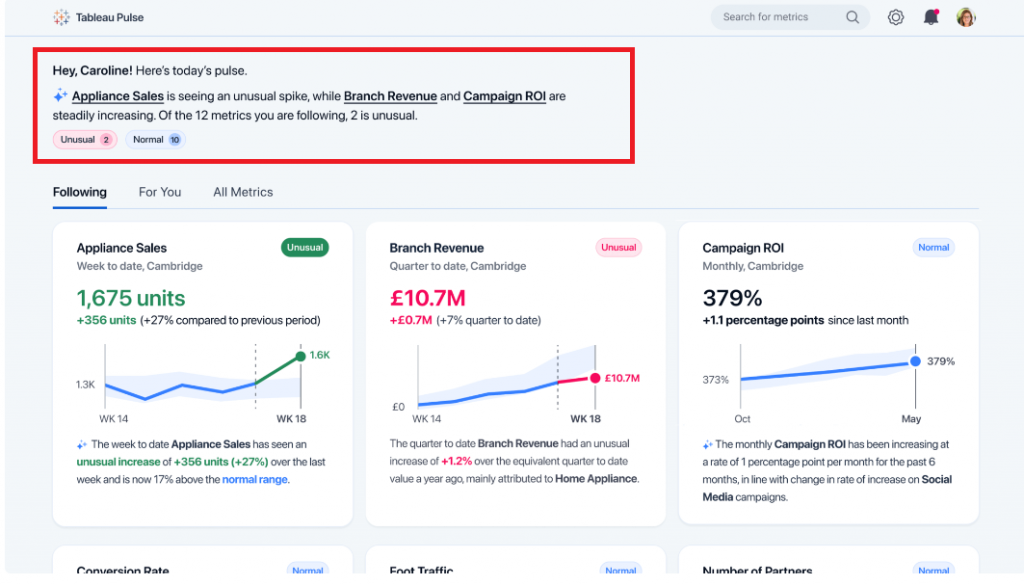
At the start of this example, Tableau Pulse presents a select set of metrics fitted to this specific user's focus.
These metrics are curated based on recent data trends identified by Tableau AI:
 Source: https://www.tableau.com/blog/tableau-pulse-and-tableau-ai
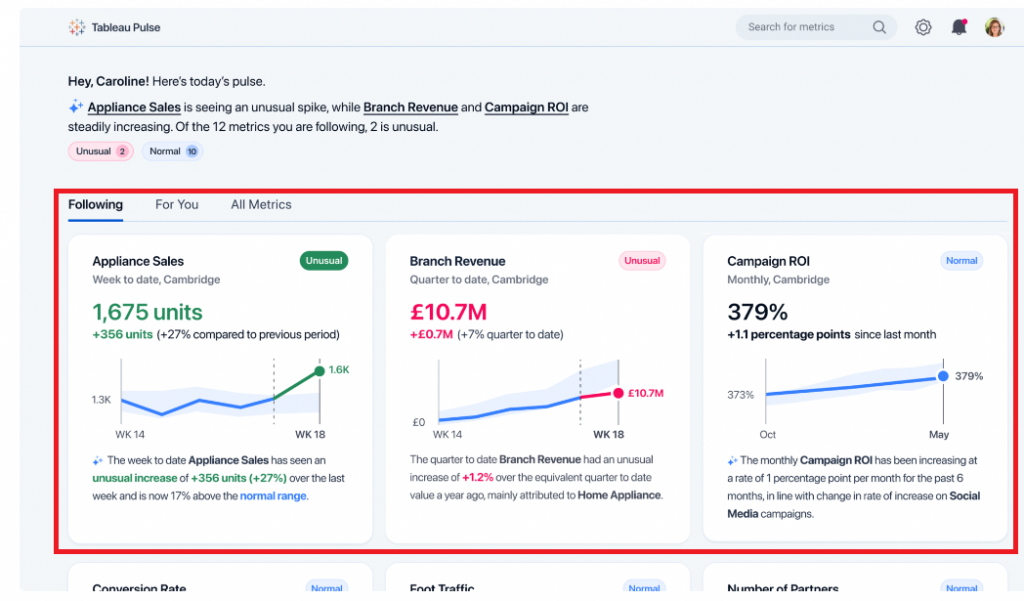
Towards the bottom of this example, Tableau Pulse showcases the KPIs that this user has actively tracked. Within this section, Tableau Pulse provides the most recent metric value, a brief visual representation of the trend, and an AI-generated insight specifically pertaining to that metric:
 Source: https://www.tableau.com/blog/tableau-pulse-and-tableau-ai
Embed Relevant Data into Your Workflow
These days, professionals juggle various applications, which poses a challenge when tracking crucial KPIs. The continual shift between disparate tools not only consumes time but also disrupts workflow continuity.
Tableau Pulse heralds a transformative shift by integrating pertinent data directly into users' existing tools. This breakthrough ensures data detachment from specific dashboards, guaranteeing access to essential metrics without workflow interruptions. Insights are seamlessly captured within the tools where users spend the most time, eradicating the risk of missing critical information due to platform discrepancies. Additionally, this integration streamlines the scalability of insights across the organization, simplifying the process of visualizing, sharing, and collaborating on data by utilizing tools already familiar to everyone within the company.

Effortless Data Interpretation
Today's data interpretation can often entail a laborious and manual process. Users invest significant time analyzing data to unveil trends and insights while navigating the labyrinth of questions to pose to their datasets. This complexity invariably impedes decision-making speed and hampers overall productivity.
Tableau Pulse redefines data utilization by automating analysis and communicating insights in easily comprehensible, natural language formats. Initially, Tableau Pulse assumes the burden of uncovering the 'why' behind the 'what.' It autonomously identifies and generates insights, predicting the queries you might raise and even suggesting questions that may not have crossed your mind. Subsequently, Tableau AI succinctly summarizes these insights conversationally. This streamlined approach facilitates faster, informed decision-making, eliminating the need for extensive manual data analysis.
In the example below, Tableau Pulse extends its capabilities to address your data inquiries using natural language. Upon delving deeper into the "Appliance Sales" metric, Tableau Pulse was queried, "What is driving change in Appliance Sales?" In response, Tableau Pulse swiftly provided a concise answer along with a visual representation elucidating the factors influencing this change.

With the introduction of Tableau AI and Tableau Pulse, Tableau is set to revolutionize the industry once more, unveiling a fresh experience tailored for analytics consumers. This innovation aims to empower every individual to embrace a truly data-driven approach. Tableau AI and Pulse are reshaping how organizations engage with data, empowering decision-making, and fostering a more data-driven future.

Eyes Wide Open: Defending Against Homograph Phishing Schemes
Understanding Homograph Phishing Attacks
Homograph phishing attacks rely on Internationalised Domain Names (IDNs), a feature designed to accommodate non-ASCII characters in domain names. While this capacity improves internet access for people of varied language backgrounds, it also allows for harmful exploitation. Cybercriminals can now register domain names that appear identical or almost equivalent to regular Latin characters but come from alternative Unicode character sets.
For example:- Legitimate Website: www.login.microsoft.com
- Homograph Phishing URL: www.login.micrsoft.com
In this example, the 'o' in the homograph URL is not the standard Latin 'o,' but rather the Latin Small Letter Sideways 'ᴑ', which visually appears identical. To unsuspecting users, the homograph URL looks indistinguishable from the legitimate one and consequently fall prey to it.
The Dangers of Homograph Phishing Attacks
Homograph phishing attacks pose significant risks, primarily due to their ability to deceive users successfully by means of:
- Credential Theft: Cybercriminals utilise homograph URLs to impersonate reputable websites and deceive users into entering their login credentials, collecting critical information.
- Financial Fraud: Attackers may imitate banking websites, payment portals, or e-commerce platforms to steal credit card information or banking information from unsuspecting consumers, resulting in financial losses.
- Malware Distribution: Homograph URLs can route users to fraudulent websites or start malware downloads, possibly infecting their devices and leading to data breaches.
- Business Email Compromise (BEC): Homograph phishing URLs help in BEC attacks, in which attackers imitate high-ranking officials to trick employees into making fraudulent money transfers or disclosing sensitive information.
Protecting Against Homograph Phishing Attacks
While homograph phishing attacks can be challenging to detect, several preventive measures can help enhance cybersecurity like those of:
- Domain Monitoring: Monitor domain registrations regularly for questionable or homograph URLs that mimic valid domains. Security professionals can also employ specialised tools to proactively identify potential risks.
- Using Web Browsers with IDN Support: Modern web browsers include features for detecting and displaying problematic homograph URLs. Check that your browser is up to date and that IDN support is enabled.
- URL Inspection: Hovering over links to show the actual domain before clicking on them encourages people to carefully analyse URLs. Homograph URLs may appear deceiving at first view, but they disclose their actual nature with closer inspection.
- Deploying Security Software: To detect and block fraudulent URLs and emails, use powerful security solutions such as anti-phishing software, firewalls, and email filters.
- Cybersecurity Awareness Training: Educate staff and users about the dangers of homograph phishing attempts and encourage them to be proactive in cybersecurity.
Defending against homograph phishing attacks necessitates a multi-pronged approach. Organisations and people must use domain monitoring services such as Amazon Route 53 and web browsers with IDN capability to identify fraudulent URLs. It is critical to educate clients about the risks through cybersecurity training.
Beinex+ AWS Offerings
AWS provides security services such as AWS Shield and AWS WAF to help protect against phishing attacks. Strengthen your defences by integrating robust security software from the AWS Marketplace and embracing Two-Factor Authentication (2FA). Safeguard against evolving threats like homograph phishing for a safer online experience.
Beinex is an AWS consulting partner, and we empower customers to host their BI solutions, provide security services and much more on the cloud. Our cloud migration experts bring in best-in-class stability and reliability by understanding your business strategy and working closely with you to deploy AWS infrastructure as a service.